How to Choose a Laser Printer for a Home Office
A buy-once method to choose a laser printer: size the duty cycle, read toner yield, understand drum designs and check warranty and support life.
 By BuyOnceChoice Editorial Team
Updated November 16, 2026
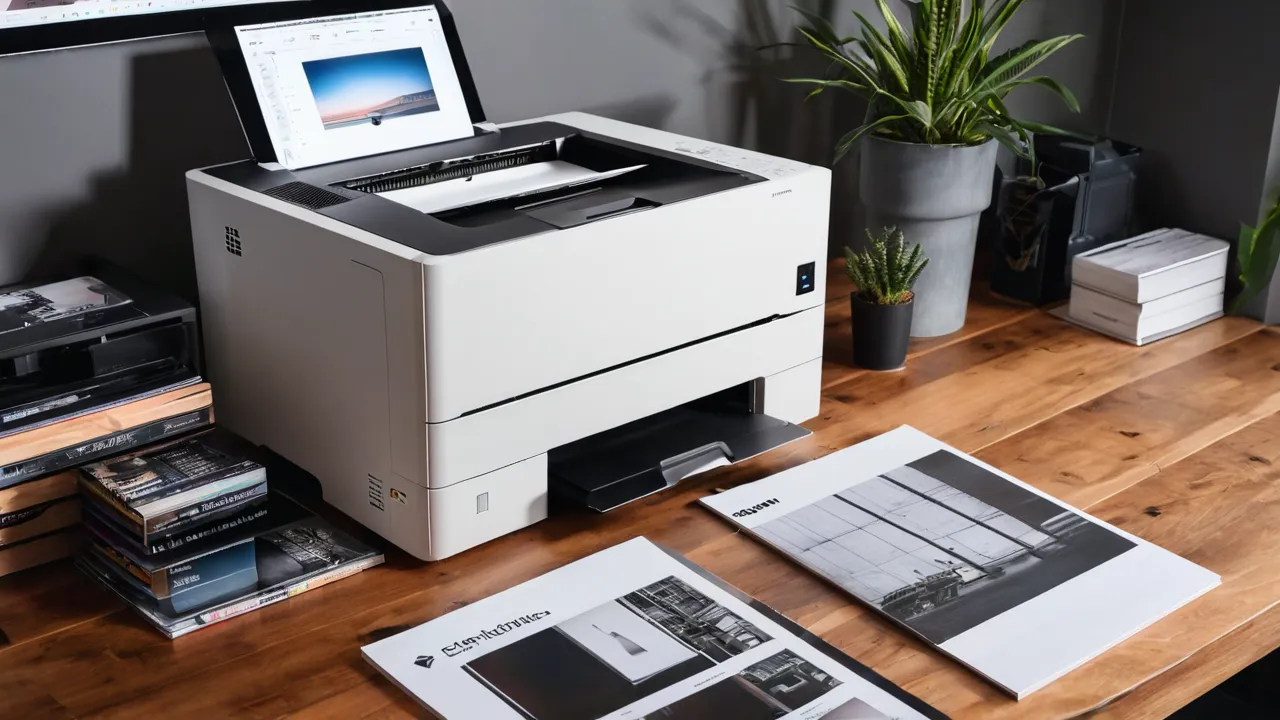
To choose a laser printer for a home office, match the maker’s stated monthly duty cycle to your real volume, compare cost per page using the stated toner yield, understand whether the drum is separate or built into the toner, and check warranty and driver support life. Features like Wi-Fi and duplex come after those four checks.
Start With Your Real Volume
Before you read any spec sheet, count the pages you print. A simple way is to note how many pages you print over one month, then scale for busy seasons such as tax time or school terms. Most home offices print in the tens or low hundreds of pages per month, which is well within the reach of a small laser.
Write down three numbers: typical monthly pages, busiest month and whether you need color. These numbers feed every other choice below. A buyer who prints a hundred pages a month needs a very different machine from one who prints several hundred, even if both say they need a laser printer.
Also decide what else the machine must do. A print-only model is cheaper, simpler and usually more reliable than an all-in-one. If you scan occasionally, a phone scanning app may cover it, and a separate flatbed scanner might be a better buy than a bundled one.
Duty Cycle: Read It Correctly
Duty cycle is the maximum number of pages a maker says a printer can handle in a month. It is not a recommendation for normal use. Makers often publish a separate recommended monthly volume that is much lower, and that figure is the more useful one.
A sound rule is to choose a machine whose recommended volume comfortably exceeds your busiest month. If you print near the top of the recommended range every month, wear on the rollers, fuser and drum accelerates and you are more likely to see jams. If you print well below it, the machine runs at a relaxed pace.
Do not pay for a high duty cycle you will not use. A bigger machine costs more up front, takes more space and often uses more costly consumables. Pick the size that fits your busiest month with room to spare.
Toner Yield and Cost Per Page
Toner yield is the number of pages the maker says a cartridge will print under a standard coverage assumption. Real yield depends on how much of the page is covered by text and graphics, so documents with heavy graphics use toner faster.
The useful calculation is the replacement cartridge price divided by its stated yield. We do not list prices here because they change, but you can do the math on the product page. Compare the high-yield cartridge, not the starter one that comes in the box, and note that many printers ship with partly filled starter cartridges.
Also look at whether the printer accepts high-yield cartridges at all. Some models only take the standard size, and that makes the cost per page higher. A machine with cheaper supplies often beats a cheaper machine over a few years, which is the heart of buy-once thinking.
A Cost Per Page Comparison Without Prices
You can compare two printers without writing down a single price. Divide each replacement cartridge price by its stated yield, and compare the results as ratios. If printer A uses a cartridge that costs twice as much as printer B but yields three times the pages, printer A runs at two thirds of printer B’s cost per page. Do the same for the drum if it is separate, then add the two results for a true running cost.
Include the starter cartridge in your thinking only as a short bridge. Many printers ship with a partly filled cartridge, so your first replacement may arrive sooner than the box implies. Record the date you install the first replacement so you can check real yield against the maker’s claim.
Drum Design: Where the Wear Lives
A laser printer has a photosensitive drum that wears over time. Some printers combine the drum and toner in a single cartridge, so you replace the drum whenever you replace toner. Others use a separate drum unit that lasts through several toner cartridges.
Each design has trade-offs. All-in-one cartridges are simple and reduce the chance of a worn drum causing poor print quality, but each replacement costs more. Separate drums cost less per toner change but add a second consumable to track and replace.
Read the product page to see which design the printer uses and what the maker says about drum life. Choose the design that matches your habits. If you want fewer parts to think about, the combined cartridge is easier. If you print a lot and want lower running costs, a separate drum can pay off.
A Quick Volume Rule
A sound rule is to keep your busiest month under about half the maker’s recommended monthly volume, when that figure is published. A person who prints 150 pages in a busy month fits a printer with a recommended volume of 300 pages or more with plenty of room. If your busiest month passes the recommended volume, move up a class instead of leaning on the duty cycle.
Warranty, Support and Longevity
Because lasers are often kept for many years, warranty and software support are major factors. Read the warranty length and what it covers, especially for fuser and rollers, and whether a registration is required. Policies vary and some include limited coverage for consumables.
Check how long the maker supports drivers for your operating system. A printer that stops working after an operating system update is wasted money. Look for broad support for current Windows and macOS, plus standard driver options.
Beware of printers that depend on cloud accounts or subscriptions to function. Prefer models that print over a network or USB without sign-in, and that accept supplies without restrictions the maker may enforce. Read the terms on the product page.
Features Worth Having and Ones to Skip
Features that earn their place in a home office include automatic duplex printing, which saves paper, network and USB connectivity, a front paper path that handles your usual media and a reasonable paper tray size. If you scan multi-page papers, an automatic document feeder saves time.
Features to be skeptical about include fancy touchscreens, bundled apps and large paper trays you do not need. They raise the price and add parts that can fail or become outdated. Wireless setup is useful, but ensure there is a fallback if the network changes.
Mind the footprint. Lasers are deeper than inkjets and need space for paper trays and vents. Measure your shelf, and leave clearance as the manual states. Noise during printing is also a factor in a small room.
Security and updates are easy to overlook. A networked printer is a small computer, and makers release firmware updates that fix problems. Check whether the maker publishes updates for older models and whether the printer can be updated without a cloud account. Disable features you do not use, such as remote printing from outside your home network, unless you need them.
Environment matters a little. Lasers heat the paper and can emit a faint odor when new, so give a new machine some air for the first few hours. Place it away from your desk if you sit all day close to it, and keep vents clear. Follow the manual for ventilation and clearance, and unplug the machine before clearing a jam near the fuser, which can be hot.
Last, keep a short record after you buy. Note the model number, the replacement cartridge and drum part numbers, and the date you installed each one. That small habit makes it easy to reorder the right supplies and to notice when a cartridge yields fewer pages than the maker states, which can signal a problem worth a warranty claim.
Who Should Choose Which
- Choose a compact monochrome laser if you print text and forms at modest volume.
- Choose an all-in-one laser if you copy and scan paper regularly.
- Choose a color laser only if you need color graphics often and accept four toners.
- Skip models with tiny starter cartridges or no high-yield option.
- Skip duty cycle bragging. Look at recommended volume instead.
Frequently Asked Questions
What size laser printer do I need for a home office?
Choose by monthly pages and the space you have. Most home offices print in the tens to low hundreds of pages, which a compact laser handles easily. Read the recommended monthly volume, not just the duty cycle, and confirm that the printer fits your shelf with clearance for trays and vents.
Should a home office laser printer be monochrome or color?
Choose monochrome if you mainly print text, forms, and invoices, since it is simpler and usually costs less to run. Choose color only if you print graphics often, because four toner cartridges raise running costs. A small color laser also needs more space and parts.
Is a laser printer worth it for occasional printing?
Often yes, because toner does not dry out the way ink can, so a laser handles long gaps between jobs well. The upfront cost is higher, so compare it with your page count. Check starter cartridge yield, since the first replacement may arrive early.
Do I need Wi-Fi on a home laser printer?
Wi-Fi is useful if several devices print or the printer sits away from your computer. USB or an Ethernet port is more stable and avoids setup trouble. Look for a model that works without a cloud account, and check that firmware updates are available.
Final Thoughts
Know your volume, read recommended volume rather than maximum duty cycle, do the toner math and understand the drum design. Then check warranty, driver support and supply policies. These steps protect you from the common trap of buying cheap hardware that costs more to run.
Our printers and scanners category and printer roundup list options we have covered, and how we review explains how we compare them.
Related buying guides
- Laser Printer Maintenance: Drum, Fuser and Rollers
- Laser Printer Paper, Cardstock and Labels Guide
- Laser Printer Safety: Ozone, Toner and Ventilation
About the author

The BuyOnceChoice Editorial Team researches durable products worth buying once. Our guides compare published specifications, warranty terms, expert review consensus, and verified owner feedback. We do not conduct our own product trials. See How We Review and our Editorial Policy for our standards.