USB-C Monitor vs Docking Station for Laptops
Decide between a monitor with built-in USB-C charging and a separate dock by checking charging wattage, video support and how many devices you connect.
 By BuyOnceChoice Editorial Team
Updated November 16, 2026
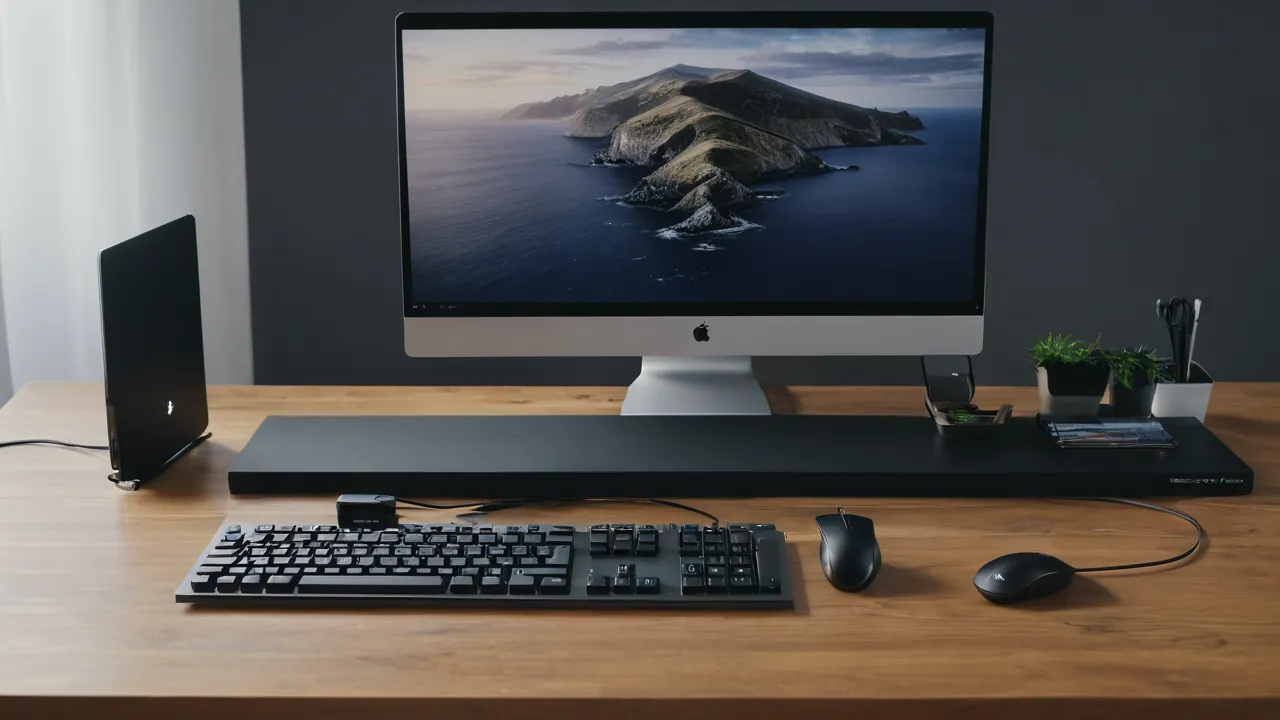
A USB-C monitor wins when you have one laptop, one screen and want a single cable that carries video and charging, while a docking station wins when you connect many devices, use more than one display or swap between several laptops. The deciding checks are charging wattage and whether your laptop port supports video output.
What Each Option Actually Does
A USB-C monitor is a display with a built-in power and data connection. One cable from the laptop carries video, charges the laptop and often connects a small set of ports on the back of the monitor for a keyboard, mouse or webcam. Some call it a docking monitor.
A docking station is a separate box that connects to the laptop and then to everything else, including one or more monitors, wired network, storage, audio and a charger. Some docks connect with a single cable, while others need power separately and additional cables for video.
The difference is where the hub lives. In the monitor, it comes bundled and limited. In a dock, it is separate and expandable. That one difference drives almost every trade-off below.
Check Your Laptop Port First
Not every USB-C port can send video. The port on your laptop must support a video output mode, commonly called DisplayPort Alternate Mode, or Thunderbolt, or USB4 with display support. A port that only charges or only transfers data will not drive a monitor.
Look in the laptop manual or the maker’s specification page for the wording about video output on the port, and for markings such as a Thunderbolt symbol or a small display icon beside the port. If the documents are unclear, check the support page by model number.
This check matters more than any other. It is the most common reason a new monitor or dock appears to do nothing, and it costs nothing to confirm before purchase.
Wattage Matching for Charging
The charging power that a monitor or dock supplies must be enough for your laptop. Laptop chargers range widely, from low wattage for thin models to much higher for workstations. A monitor that delivers less power than the laptop needs may keep the battery from draining quickly yet not fully charge it under load, or it may not charge at all.
Find the wattage on your original charger label, then compare it with the power delivery figure on the monitor or dock page. Aim for a supply equal to or above the original rating. If it is lower, the laptop may charge slowly or run on battery while working, and some laptops warn about a slow charger.
For safety, use chargers, docks and cables rated for your laptop wattage, and avoid damaged cables. A cable that gets hot or has bent connectors should be retired. Check the manual for approved accessories.
Where a USB-C Monitor Wins
A monitor with a built-in hub suits the simple desk. You connect one cable and the laptop charges, the screen turns on and the keyboard, mouse and webcam plugged into the monitor appear. There is less clutter, less to buy and nothing extra to plug into a power strip.
It also makes sense when you work at a desk part time. You walk in, plug in one cable and start. There is no second box to track, which simplifies setups for remote workers who switch between home and office.
The limits are clear. Port count is small, the number of screens you can daisy chain depends on the models, and if the monitor fails, you lose the hub with it. If you replace the monitor in a few years, you also replace the dock functions.
Where a Docking Station Wins
A dock fits crowded desks. It can drive two screens, offer a wired network port, connect card readers and external drives, and hold your peripherals when you leave. Because it is separate, you can replace a monitor without touching the hub, and you can upgrade the dock when your laptop changes.
Docks are also the choice for shared desks and mixed laptops. Anyone who sits down plugs in one cable and gets the same setup, as long as the dock supports their laptop. For people who use both a Mac and a Windows laptop, a Thunderbolt dock is often easier to share than monitors with different hubs.
The cost is complexity. You need to check display support, power delivery and driver requirements, and a poor choice leaves you with a dock that supports one screen or charges too slowly. Read the dock’s stated limits for number and resolution of displays.
Think about the sequence in which you set things up on the first day. Plug the dock or monitor into power, connect the video cable to the laptop, then attach peripherals one at a time. If something fails, you can find the culprit quickly. Updating the laptop firmware and graphics drivers beforehand removes many mysterious problems, and the maker’s support page usually lists known issues for dock and monitor combinations.
A Device Count Method
List everything you connect on a normal day: screens, keyboard, mouse, webcam, headset, wired network, external drive, and a card reader. Count the ports you need and compare them with what the monitor hub or dock lists. If your list has four or fewer items and one screen, a USB-C monitor usually covers it. If it has five or more, two screens, or a wired network, a dock fits better. Add one or two spare ports for what you might buy next year, and check the stated display count and charging wattage on the product page.
Cable and Port Pitfalls
Not all USB-C cables are equal. Some carry only charging, some carry data at low speeds, and some support video and higher power. Use the cable that ships with the monitor or dock when possible, or one the maker specifies. A mismatched cable is a common cause of flickering or dropped signals.
Keep cable runs reasonable. Very long passive cables can lose signal quality at high resolution. If you use a standing desk, leave a little slack so the cable is not pinched or pulled as the height changes. See our standing desks category for notes on cable management.
Mixed ecosystems need extra care. Some laptops, especially thin models and certain Apple notebooks, limit the number of external displays through a single port, and docks that promise two screens may deliver one on those machines. Another gotcha is that some docks mirror rather than extend on certain systems unless a driver is installed. Read the compatibility notes for your operating system and laptop model before buying.
Future changes matter too. If you may switch laptops, a standards-based dock with strong power delivery is more likely to carry over, while a monitor’s built-in hub ties your setup to that one screen. Consider how long you plan to keep each piece. A hub that outlives two laptops is a buy-once advantage.
Heat and noise are minor but real. Some docks run warm, and a few have small fans that you may hear in a quiet room. A monitor-based hub has no extra box to heat the desk. If your workspace is small or you record audio, this can tip the choice.
A Charging Match With Made-Up Numbers
Suppose your laptop ships with a 65 watt charger. A monitor that supplies 65 watts matches it, so the laptop should hold its charge under light work. A monitor that supplies 15 watts will not keep up, and the battery may drain under load. If your charger is 100 watts and the dock supplies 90 watts, expect slower charging during heavy work, and keep the original charger as a backup. The lower of the two numbers wins, so read both product pages. If the laptop reports a slow charger, check the cable rating as well.
Who Should Choose Which
- Choose a USB-C monitor if you have one laptop, one external screen and a few peripherals, and you want the fewest cables.
- Choose a dock if you run two screens, share the desk between laptops or need wired network and many ports.
- Skip a USB-C monitor if its power delivery is below your laptop charger rating.
- Skip a dock if your laptop port does not support video output, or you only need one screen and a few devices.
Frequently Asked Questions
Is a USB-C monitor better than a docking station?
Only for simple setups. A USB-C monitor suits one laptop, one screen, and a few peripherals with a single cable. A dock suits many devices, two screens, wired network, or sharing a desk among several laptops. Check your laptop video support and charging wattage first.
Can a USB-C monitor charge my laptop?
Yes if the monitor supplies enough power delivery and your laptop port supports charging. Compare the monitor wattage with your original charger rating. If the monitor is lower, the laptop may charge slowly or drain under load, so keep the original charger available.
Do I need a docking station if my monitor has USB-C?
Not if the monitor hub covers your ports and you use one screen. You may still want a dock for two screens, wired network, card readers, or several laptops. Check display limits, since some laptops allow only one external display over a single port.
Why does my dock only show one monitor?
Some laptops limit the number of external displays through one port, and some docks mirror instead of extend until a driver is installed. Check the maker compatibility notes for your laptop model and operating system, update firmware and drivers, and confirm the dock display limits.
Final Thoughts
Check the laptop port, match charging wattage and count the devices you connect. If the answer is one laptop and one screen, a USB-C monitor is simple and tidy. If it is many devices or multiple screens, a dock gives you room to grow.
Read the maker’s notes on power delivery and display modes, and follow how we review for the criteria we apply. Our monitors category is the next stop once you know which route fits.
Related buying guides
- 27 Inch Monitor: 1440p vs 4K for Work
- 60Hz vs 144Hz Monitors: What Work Really Needs
- Built In KVM Monitors: Share One Screen Between PCs
About the author

The BuyOnceChoice Editorial Team researches durable products worth buying once. Our guides compare published specifications, warranty terms, expert review consensus, and verified owner feedback. We do not conduct our own product trials. See How We Review and our Editorial Policy for our standards.