Built In KVM Monitors: Share One Screen Between PCs
See how a monitor with a built-in KVM switch handles a work laptop plus a personal desktop, which ports it needs, and the limits that catch buyers off guard.
 By BuyOnceChoice Editorial Team
Updated November 16, 2026
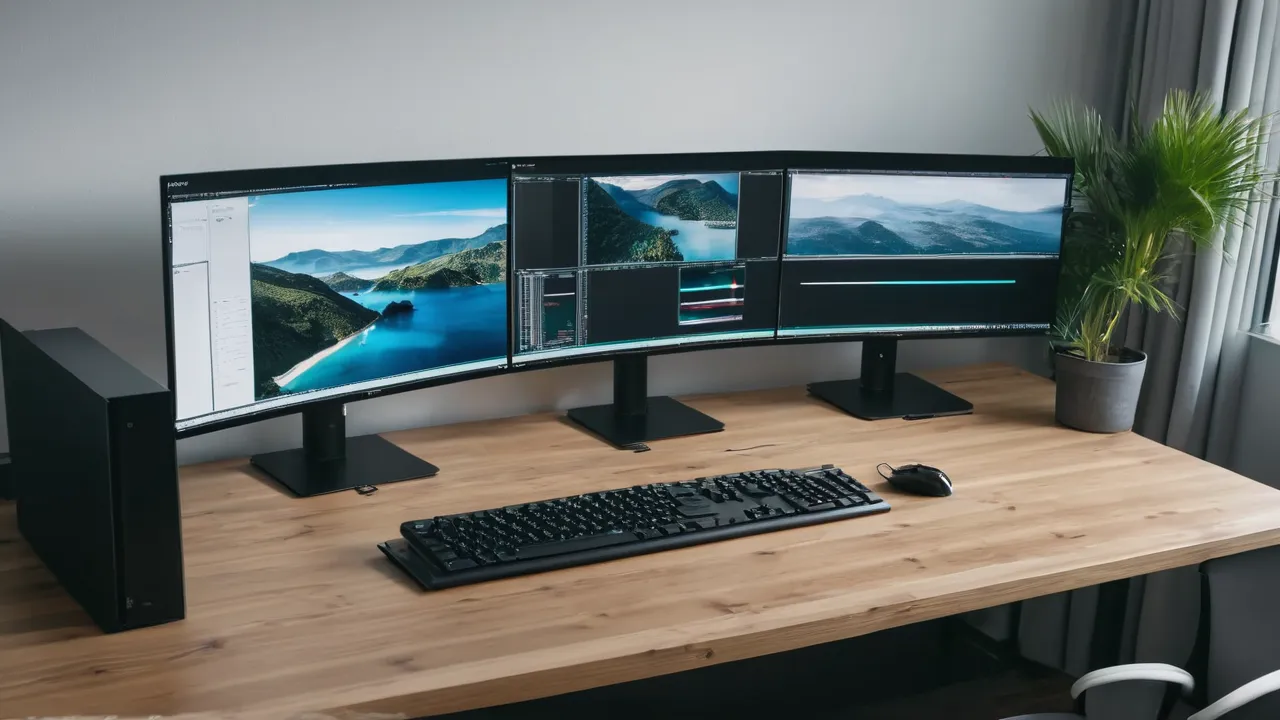
A KVM monitor for a work laptop and a desktop has a built in switch that shares one keyboard, one mouse and one screen between two computers. You connect each computer to the monitor with a video cable and a USB cable, then switch with a button or hotkey. It suits a work laptop plus a personal desktop, with some limits listed below.
What the Built-In KVM Actually Does
KVM stands for keyboard, video and mouse. A monitor with a built in KVM has two or more video inputs, and a USB hub with upstream ports for each computer. Your keyboard, mouse and other USB devices plug into the monitor’s downstream ports. When you switch inputs, the monitor changes the picture and passes the USB devices to the computer you selected.
In practice you need two cables per computer: one for video, either HDMI, DisplayPort or USB-C, and one for the USB link to the monitor’s hub. With a single USB-C cable that carries video, data and sometimes power, one cable can do both jobs, if the laptop and monitor support it.
The switch is typically a button on the monitor, an on screen menu option or a hotkey. Some models offer automatic switching when you plug in a source, which can help or annoy, depending on your habits.
This replaces a separate KVM switch box, and it saves desk clutter. It does not give you a second screen, and it cannot make two computers show on one screen at the same time unless the monitor offers picture by picture mode, which splits the screen.
Scenario One: Work Laptop Plus Personal Desktop
This is the most common case. The laptop belongs to your employer, the desktop is yours, and you share one monitor, keyboard and mouse.
1. Connect the desktop with DisplayPort or HDMI, plus a USB cable from the desktop to the monitor’s first upstream port.
2. Connect the laptop with USB-C, if it supports video output and the monitor supports it. That single cable carries video, USB data and sometimes charging power. If the laptop lacks that support, use HDMI or DisplayPort plus a USB cable.
3. Plug the keyboard, mouse and a webcam into the monitor’s downstream ports.
4. Switch with the monitor’s button or hotkey, and set the monitor to remember the last input.
Check your employer’s policy. Some companies restrict USB devices or require approved equipment on managed laptops. Using a monitor hub with a personal keyboard on a work laptop is common, though it is worth confirming. Also keep work and personal files separate, since a shared keyboard does not mix files but a shared clipboard utility might.
Charging matters. A USB-C connection that delivers enough power can charge the laptop, and the monitor lists the wattage it supplies. If it is lower than the laptop charger’s rating, keep the original charger plugged in.
Two Laptops and a Docking Station
If both computers are laptops, the monitor’s KVM can switch between them over USB-C. Make sure each laptop’s USB-C port supports DisplayPort video output. Some ports carry only data.
If you already use a docking station at the desk, it may be simpler to connect the dock to the monitor and move one cable between laptops. A monitor KVM adds value when both laptops stay connected all day. Check how the monitor handles the dock. Some setups work only when the dock connects to one upstream port, and a chain of hubs can slow devices or cause dropouts.
Plan the cables before you buy. Count the ports on the monitor and on each computer, note which ones carry video, and write down which cable goes where.
A Gaming PC and a Work Machine
A gaming PC asks more of the monitor. High refresh rates and high resolutions need the right input, and some monitors limit the refresh rate on certain ports or when USB data is active over USB-C. Check the monitor’s specification for which input supports the maximum refresh rate. Use that input for the gaming PC, and use the other for the work machine.
Some monitors have different USB speeds on different ports. If you use a webcam, microphone or headset, check that the upstream and downstream ports provide enough bandwidth for those devices.
Gamers who use a mouse with a high polling rate sometimes report problems through hubs. If you notice stutter, try plugging the mouse into a different port, or connect gaming accessories directly to the PC. This is another reason to keep one input for gaming and read the notes in the manual.
Limits to Know Before You Buy
- Switching speed: a switch can take a few seconds while the monitor syncs with the new input.
- Window layout: when you switch away from a computer, it may think the monitor was unplugged and rearrange windows. Some computers handle this poorly, and you may have to drag windows back.
- Sleep behavior: a computer connected to a switched away monitor may sleep, or may keep running as if the monitor were still attached, depending on settings and the monitor’s firmware.
- Hotkeys: some KVM functions work only with the monitor’s own control software or button, and some software is not available for every operating system.
- USB speed: devices behind the hub share bandwidth, so large file transfers over the hub can be slow.
- Cable length: long USB or video cables can cause trouble. Use cables rated for the speed.
- Resolution and refresh limits: check which input supports your target settings.
Our monitors category lists models that include these features, and the pages state the ports. Read the manual’s KVM chapter before you decide.
Compare With a Standalone KVM Switch
A standalone KVM switch sits between the computers and the monitor, and shares the keyboard, mouse and display. It works with any monitor, and some models support more computers, or different video formats. It adds another box and cables, and it can limit resolution or refresh rate if it is not rated for the signal.
A built in KVM has fewer boxes, fewer cables and no extra power adapter. It works only with that monitor, and if the KVM part fails, the monitor is still useful as a monitor, though you lose the feature. When you replace the monitor, you lose the KVM too.
| Question | Built in KVM | Standalone switch |
|---|---|---|
| Desk clutter | Lower | Higher |
| Works with any monitor | No | Yes |
| Number of computers | Usually two | Two or more |
| Cost | Included in the monitor price | Extra purchase |
| Replacement | Whole monitor | Only the switch |
For two computers and one monitor, the built in option is usually the tidier one.
Setup Checklist and Daily Habits
1. Confirm that each computer has a suitable video output and a USB port.
2. Connect video and USB for each computer, and label the cables.
3. Plug keyboard, mouse and other devices into the monitor.
4. Set the monitor’s input and USB selection mode in its menu.
5. Update the monitor firmware if the maker supplies updates.
6. Set each computer’s display settings to the monitor’s native resolution and refresh rate.
7. Check that the sleep settings on each computer match how you use them.
8. Save the cable arrangement in a note, so that you can restore it after a move.
A Worked Example
Imagine an analyst with a work laptop and a home desktop. The desktop runs a display cable and a USB cable to the monitor. The laptop connects with one USB-C cable that carries video, data and charging. The analyst sets the monitor to switch the USB devices with the video input, so that the keyboard and mouse follow the screen. At the end of the day, the analyst presses the monitor button to switch to the desktop, and the laptop goes to sleep on its own after a few minutes.
Frequently Asked Questions
What is a KVM monitor?
A KVM monitor has a built in switch that lets two or more computers share one screen, keyboard and mouse. You connect video and USB from each computer to the monitor, then switch with a button or hotkey. It reduces cable clutter compared with a separate switch box.
Can a KVM monitor charge my laptop?
Some can, if the USB-C port supplies power. The monitor lists the wattage it delivers. If that is lower than your laptop’s charger, the laptop may charge slowly or not at all under load. Keep the original charger if in doubt.
Do I need two USB cables for a KVM monitor?
Usually, for each computer you need a video cable and a USB cable to the monitor’s hub. A single USB-C cable can carry video and data if both the laptop and the monitor support it. Check the ports on each device before you buy.
Will windows move when I switch computers?
They might. Some computers treat a switched away monitor as unplugged and rearrange windows. Settings and operating systems differ. Check the display and sleep options, and if the problem persists, look in the monitor’s menu for a setting that keeps the input detected.
Final Thoughts
A built in KVM monitor suits a work laptop plus a personal desktop when both have the right ports. Plan the cables, check the refresh rate limits and the window behavior, and confirm any employer rules. For more computers or more flexibility, a standalone switch may serve better. Read the how we review page and compare picks in our best productivity monitor roundup.
Related buying guides
- Common Monitor Buying Mistakes to Avoid
- Curved vs Flat Monitors: Which Suits Work
- Dual Monitor Setup Checklist for Laptop and Desktop
About the author

The BuyOnceChoice Editorial Team researches durable products worth buying once. Our guides compare published specifications, warranty terms, expert review consensus, and verified owner feedback. We do not conduct our own product trials. See How We Review and our Editorial Policy for our standards.