Monitor Calibration: Do You Need a Colorimeter?
Most office users can skip monitor calibration. Learn who benefits from a colorimeter, how often to recalibrate, and what to try before buying hardware.
 By BuyOnceChoice Editorial Team
Updated November 16, 2026
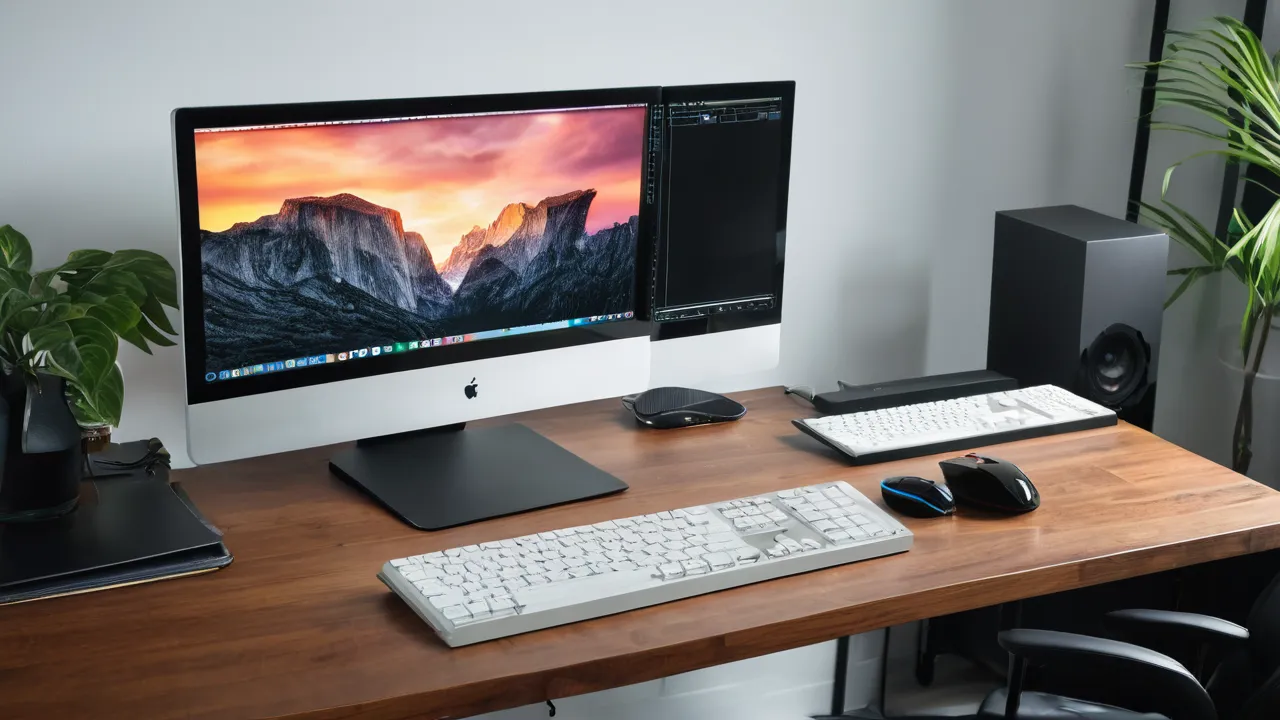
Most people who use a monitor for office work do not need to calibrate it with a colorimeter. Photographers, designers, video editors, and anyone who prints or delivers color-critical work do, because calibration keeps colors consistent and matched to a standard. A decent factory setting and a few sensible adjustments serve everyone else.
Calibration sounds technical, and sellers of hardware tools promote it widely. This guide explains what calibration does, who benefits, how often to do it, and what free steps you can take before spending on a colorimeter.
What Calibration Does
A monitor’s colors drift from the standard because of panel differences, backlight aging, and settings. Calibration measures what the screen shows, using a device placed on the display, and adjusts settings or builds a profile so that colors match a target such as sRGB, along with a chosen brightness and white point. The result is a more accurate and consistent picture.
A colorimeter is the measuring device, a small sensor that reads colored patches on the screen. A spectrophotometer is a more advanced instrument that measures light spectrum and can also read prints, though it costs more. Hardware calibration, available on some monitors, writes adjustments into the monitor itself, while software calibration applies them in the computer’s graphics path. Our monitors category explains the features related to color.
Who Benefits From Calibration
A useful question to settle whether you need it is to ask what happens if the colors are slightly off. For a photographer who prints, an unmatched screen means wasted paper and time. For a designer who delivers to a client, it means complaints. For a spreadsheet user, it means nothing. If the answer is nothing, do not buy a tool.
It also matters where your work ends up. Content seen mostly on phones and laptops is viewed on a wide range of screens that are not calibrated, so extreme precision on your side has a limit. Work for print and for broadcast standards is the area where matching a standard pays off.
Calibration pays off when color accuracy has a consequence:
- Photographers who edit and print images and need prints to match the screen.
- Designers and video editors who deliver work to clients or to broadcast standards.
- Teams that need several screens to match each other.
- People who work with brand colors and need consistency.
For these users, a colorimeter is a work tool. Combine it with controlled room lighting and a screen with good uniformity and gamut coverage, since calibration cannot fix a panel that cannot show the colors.
Who Can Skip It
Office users, students, and people who browse and watch video can skip calibration. Modern monitors often have acceptable factory settings, and many ship with a calibration report. Small color differences between screens rarely matter for documents, email, or casual media. If your screen looks reasonable in a standard mode, such as sRGB, leave it.
Gamers and general viewers may prefer a vivid picture and will not benefit from accuracy. The cost, time, and re-calibration needed do not justify the effort for them.
Free Steps to Try First
A quick visual check can reveal big problems. Open a gradient image and look for banding or color tints in gray areas. Open a photo you know well, such as a family picture with skin tones, and see whether it looks natural. Compare the screen with a phone or a second monitor displaying the same image, keeping in mind that those screens differ too. If grays look blue or yellow, adjust the color temperature in the monitor menu until they look neutral.
Also check the room. Colored walls, warm lamps, and sunlight change how you perceive the screen. A neutral gray surround and steady light make any screen easier to judge.
Before buying hardware, try these:
- Choose the sRGB or standard preset in the monitor’s menu if one exists.
- Set brightness for the room, avoiding extremes, and reduce it in dim rooms to ease eye strain.
- Use the operating system’s built-in color calibration tools, which guide you by eye through brightness, contrast, and gamma.
- Turn off extra enhancements such as dynamic contrast or vivid modes.
- Check that the operating system uses the correct color profile.
- Place the monitor away from direct light to avoid glare that changes how colors look.
These adjustments handle most of the practical issues for casual users.
A Step by Step Calibration Routine
If you decide to calibrate, follow the same routine each time. First, let the monitor warm up for about half an hour. Second, set the room lighting you normally work in and avoid direct light on the screen. Third, reset the monitor to its default or standard mode, and turn off dynamic contrast and similar features. Fourth, choose your targets in the software. A common choice for general work is a white point of 6500 Kelvin and a gamma of 2.2, with a brightness that suits your room, and many photographers choose roughly 100 to 120 candelas per square meter for print matching. Fifth, run the measurement and save the profile. Sixth, view a few familiar photos and compare against the old profile before you keep it.
How Often to Recalibrate
Let the monitor warm up for a while before you calibrate, because brightness and color settle as the panel reaches its working temperature. Calibrate in the lighting you normally work in, at the brightness you normally use. Avoid changing monitor settings afterward, since a new brightness setting invalidates the profile. Keep a note of the date and the target you used, so you can repeat the process on the same terms.
For professional work, calibrating every few weeks to a few months is common, depending on the standards of the work and the stability of the panel. New monitors may drift more in the first period of use. Panels also drift as backlights age and warm up, so let the screen run for a while before measuring. Higher-end monitors may keep stable for longer and some offer built-in schedules that remind you.
If your work is not color-critical, recalibrating a few times per year or when something looks off is plenty. Do not overdo it, since each calibration is only as good as the instrument and the conditions.
Calibration Schedules at a Glance
| User type | Typical interval | Notes |
|---|---|---|
| Office and casual use | Not needed | Use a preset and set brightness |
| Hobby photography | Every few months | Keep room light steady |
| Print and client work | Every few weeks to monthly | Follow the standard you deliver to |
| Multi-screen matching | Monthly or when drift is visible | Calibrate all screens the same day |
These intervals are common practice, not rules. If your screen looks different, or you replace the graphics cable or reset the monitor, calibrate again because the profile no longer matches.
Choosing a Colorimeter
Price tiers reflect accuracy and features. Entry-level devices are fine for general photography, while higher-priced instruments suit workflows that need tight tolerances or print matching. Do not overbuy: a mid-level colorimeter used correctly beats an expensive tool used carelessly. Read the software manual before you start, since mistakes such as leaving ambient light measurement off, or calibrating at a different brightness than you plan to use, reduce the value of the result.
Also check how the tool handles wide gamut screens and OLED panels, since some older devices are less accurate on certain backlights and need a correction file. Maker compatibility lists are the best source.
If you decide to buy one, check that it supports your monitor type, since some devices work better with certain backlights or OLED panels. Look at the software, which should let you choose targets such as sRGB or a specific brightness, and verify results after calibration. Ask whether the device can measure ambient light. Instruments from reputable makers publish compatibility lists, so check them. For monitors with hardware calibration, confirm which devices the maker supports.
Check how the tool’s results are reported, and keep the profile file for reference. Our how we review page covers how we treat color claims.
Who Should Choose What
If you do color-critical work, buy a colorimeter and recalibrate on a schedule. If you want a consistent look across two screens, consider one for matching. If you do general office work, adjust the presets and skip the hardware. For screens that handle color well out of the box, see the best productivity monitor guide.
Frequently Asked Questions
Do I need to calibrate my monitor for office work?
No. For documents, email, browsing, and video, a sensible preset such as sRGB and a comfortable brightness are enough. Calibration with a colorimeter pays off when color accuracy has a consequence, such as printing photos or delivering color-critical work to clients.
How often should I calibrate my monitor?
Professionals commonly recalibrate every few weeks to a few months, depending on the standard they work to and how stable the panel is. Casual users can skip it or check a few times a year. Also recalibrate after changing brightness, cables, or the monitor reset.
Can I calibrate a monitor without a colorimeter?
You can improve it by eye with the operating system tools, a standard preset, and sensible brightness. That fixes obvious tints and extremes, but it cannot measure accuracy. For print matching and delivery to a standard, a measuring device is the reliable method.
Does calibration fix a bad monitor?
No. Calibration adjusts how a screen displays color, but it cannot add colors the panel cannot show or fix uneven brightness. A screen with poor uniformity or limited gamut stays limited. Choose a panel with good uniformity and gamut coverage for your work first.
Final Thoughts
Calibration is a professional tool for professional needs. If accuracy affects your work or your clients, use a colorimeter and a schedule. Otherwise, pick a sensible preset, set brightness for the room, and enjoy the screen as it comes.
Related buying guides
- Monitor Color Accuracy: sRGB, P3 and Delta E
- Monitor Ergonomics: Height, Distance and Angle
- Monitor Flicker and Eye Strain: What to Check
About the author

The BuyOnceChoice Editorial Team researches durable products worth buying once. Our guides compare published specifications, warranty terms, expert review consensus, and verified owner feedback. We do not conduct our own product trials. See How We Review and our Editorial Policy for our standards.