27 Inch Monitor: 1440p vs 4K for Work
A pixel density walkthrough for choosing between 1440p and 4K on a 27 inch desk monitor, including scaling quirks and the buyers who can skip 4K.
 By BuyOnceChoice Editorial Team
Updated November 16, 2026
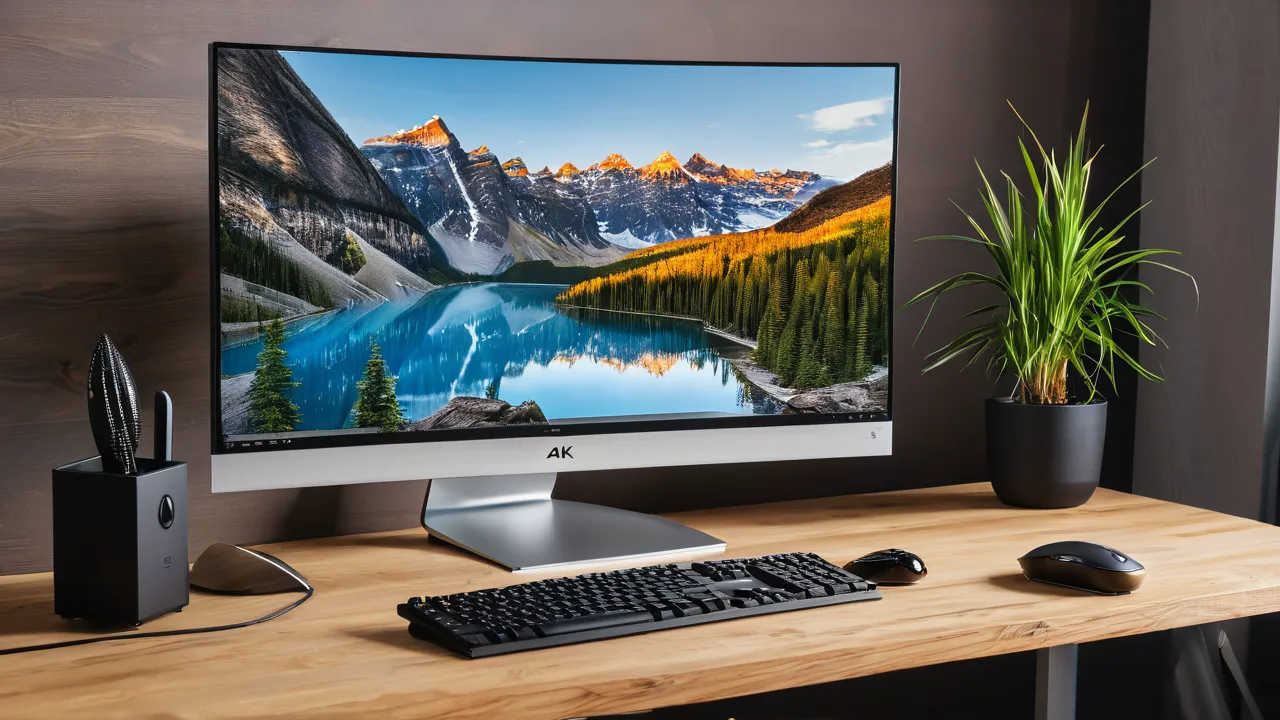
On a 27 inch monitor, 4K is about 163 pixels per inch and 1440p is about 109. 4K gives sharper text and needs 150 percent scaling to stay readable, while 1440p is comfortable at 100 percent with more usable workspace. Choose 4K for text heavy work and sharp images. Choose 1440p for more screen space per dollar and an easier load on the computer.
The Pixel Density Math Behind the Choice
Pixel density is the number of pixels per inch, and it comes from the resolution and the screen size. Take the diagonal of the pixel grid with the Pythagorean formula, then divide by the diagonal in inches.
| Resolution | Pixels | Diagonal in pixels | Pixels per inch at 27 inches |
|---|---|---|---|
| 1440p (2560 by 1440) | About 3.7 million | About 2,937 | About 109 |
| 4K (3840 by 2160) | About 8.3 million | About 4,407 | About 163 |
A 4K screen has 2.25 times as many pixels as a 1440p screen of the same size. More pixels in the same area mean smaller dots, which makes text and curves look smoother. At normal desk distance, many people can see that difference in small text. At 109 pixels per inch, text is good, though a careful eye can see the dot structure on thin fonts.
Viewing distance changes the result. A monitor at arm’s length shows the difference more than one a few feet further back. If you sit far from the screen, the sharper pixels matter less.
What Scaling Actually Does at Each Resolution
Scaling makes the on screen elements larger so that text stays readable. Without scaling, 4K on a 27 inch screen shows very small text, which is why operating systems offer a scaling setting.
- 1440p at 100 percent scaling: text and icons are a comfortable size for most users, and you get a large workspace.
- 4K at 100 percent scaling: everything is tiny, which suits few people.
- 4K at 150 percent scaling: the workspace is equal to a 1440p screen at 100 percent, with sharper text. This is the common setting.
- 4K at 125 percent or other fractional values: more workspace than 1440p, with small text.
Scaling is handled differently by each system. macOS and recent Windows versions handle fractional scaling reasonably well, though some older applications may look blurry or have wrongly sized parts of their interface. Linux desktops vary by environment. Check that the programs you use every day look right at the scaling you choose.
The key idea is that 4K at 150 percent does not give you more room than 1440p. It gives you the same room with finer detail. If you want more workspace, you must lower the scaling and accept smaller text.
GPU Load, Ports and Cable Limits
A 4K screen asks 2.25 times as much of the graphics system as 1440p. For office work, video calls and web pages, almost any modern computer handles this. For video editing, large spreadsheets with many charts or games, the extra pixels add load. Integrated graphics can drive a 4K display for desktop work, though smooth scrolling and several windows may feel better on a stronger graphics card.
Ports and cables matter, mainly if you want a high refresh rate.
- Most 4K monitors run at 60 Hz over HDMI 2.0 or DisplayPort 1.2 and later.
- 4K at a higher refresh rate needs a newer standard, such as DisplayPort 1.4 or HDMI 2.1, and a computer that supports it.
- 1440p at high refresh rates runs on more connections.
- Laptops may drive a 4K monitor through USB-C with DisplayPort alternate mode. Check that the laptop port supports video output.
- Use the cable that came with the monitor, or one rated for the bandwidth, to avoid dropouts or limits.
Confirm the computer’s output specifications before you buy. A computer that supports 4K at only 30 Hz makes the desktop feel sluggish. Our monitor buying guides explain port and cable checks.
Where 4K Pays Off and Where 1440p Wins
4K pays off when:
- You read or write for many hours, and sharper text reduces eye effort for you.
- You edit photos or video where detail matters.
- You work with design, code or documents where fine lines matter.
- You sit close to the screen.
- You use a Mac or a system with good scaling support.
1440p wins when:
- You want a large workspace at 100 percent scaling without fiddling.
- Your computer is modest, or you want a high refresh rate on a lower power system.
- You use older software that scales poorly.
- You prefer a lower cost monitor and want to put money elsewhere.
- You plan to run two monitors and want a lighter load on the computer.
For many offices, both work well. The better choice depends on your eyes, your software and your budget.
Who Should Skip 4K Entirely
Skip 4K if your computer’s graphics output cannot drive it at 60 Hz, if your software looks blurry when scaled, if you sit far from the screen or if you mostly need workspace and not sharpness. Skip it too if you notice no difference in text between the two when you try them side by side, since the extra pixels give little to you.
If the monitor will serve as a secondary display for reference windows, 1440p is plenty. If the computer is old, check the graphics output before spending on a 4K screen, and see the checklist in our best productivity monitor roundup.
A Simple Method for Deciding
1. Check your computer’s video outputs and the maximum resolution and refresh rate it supports.
2. List the applications you use all day, and check how they look at fractional scaling.
3. Decide how much text matters to you. If you read and write all day, give 4K more weight.
4. If you can, view both resolutions at your own desk distance, in a store or a friend’s office.
5. Set a total budget that includes any cable or adapter you need.
6. Choose 4K if the sharpness helps and your system supports it, and 1440p if workspace, simplicity and cost matter more.
A Worked Example
Imagine an accountant who spends the day in spreadsheets, with a laptop that supports 4K over USB-C. 4K at 150 percent gives the same room as 1440p at 100 percent, and the text is crisper, so the accountant keeps the same working layout with less strain. Now imagine an office worker with an older desktop whose output tops out at 4K 30 Hz. The desktop would feel slow at 4K, so 1440p is the sensible choice, and the money can go toward a better chair or a stand.
Checks Before You Buy
Look at the monitor’s panel type, brightness, the ports it offers and whether it includes a stand with height adjustment. Check that your operating system version supports the scaling you plan to use. Read the manual for the recommended cable, and check how the monitor wakes from sleep with your computer. These details affect daily comfort more than the resolution label alone.
Common Regrets After Buying
Buyers of 4K monitors most often regret skipping the scaling check. They set 100 percent, find the text too small and then juggle several settings per program. Others regret buying a monitor whose port only supports 30 Hz from their laptop. Buyers of 1440p monitors sometimes regret not seeing the sharper text at a friend’s desk, and wish they had compared first. The fix for each regret is the same: look at the screen in the size and scaling you plan to use, and confirm the cable and port limits before you order. If the store has a return window, use it to check both the look and the daily comfort over the first week.
Multiple Monitors and Mixed Resolutions
If you plan two monitors, matching resolution keeps windows the same size when you drag them across. Mixing a 4K screen and a 1440p screen is possible, though the system must apply different scaling to each, and some programs resize or blur as they cross the edge. A pair of 1440p monitors is the simplest dual setup, and a pair of 4K monitors needs a computer that supports two 4K outputs. Check the graphics specifications before you commit to a pair.
Frequently Asked Questions
Is 4K worth it on a 27 inch monitor for work?
It can be, if you read text for many hours or edit images, since 4K gives about 163 pixels per inch compared with about 109 for 1440p. You will usually run it at 150 percent scaling. If your software scales poorly or your computer is modest, 1440p is the easier choice.
Does a 27 inch 4K monitor need scaling?
Yes, in most cases. At 100 percent scaling, text on a 27 inch 4K screen is very small. Most people use 150 percent, which gives the same workspace as a 1440p monitor with sharper text. Some use 125 percent for a little more space.
Will my computer run a 4K monitor?
Most modern computers can drive 4K at 60 Hz for office work, over HDMI 2.0, DisplayPort or USB-C with video output. Check the port specifications for resolution and refresh rate. Older computers or ports may allow only 30 Hz, which feels sluggish. Confirm before you buy.
Is 1440p enough for a 27 inch work monitor?
Yes. At about 109 pixels per inch, text is clear for most people, and 100 percent scaling gives a large, easy workspace. It also asks less of the computer. If you notice jagged text or do detailed visual work, 4K may suit you better.
Final Thoughts
Pick 4K for sharp text, detailed work and systems that scale well, and plan on 150 percent scaling. Pick 1440p for a large 100 percent workspace, a lighter load and lower cost. Check your ports, your software and your eyes at your own desk, then choose the one that helps your daily work. Read our how we review page for the way we weigh specifications.
Related buying guides
- 60Hz vs 144Hz Monitors: What Work Really Needs
- Built In KVM Monitors: Share One Screen Between PCs
- Common Monitor Buying Mistakes to Avoid
About the author

The BuyOnceChoice Editorial Team researches durable products worth buying once. Our guides compare published specifications, warranty terms, expert review consensus, and verified owner feedback. We do not conduct our own product trials. See How We Review and our Editorial Policy for our standards.