How to Choose a Graphics Card: A Buying Guide
Pick a graphics card by what you do, your monitor, your power supply and case, then favor long driver support and a clear warranty over launch hype.
 By BuyOnceChoice Editorial Team
Updated November 16, 2026
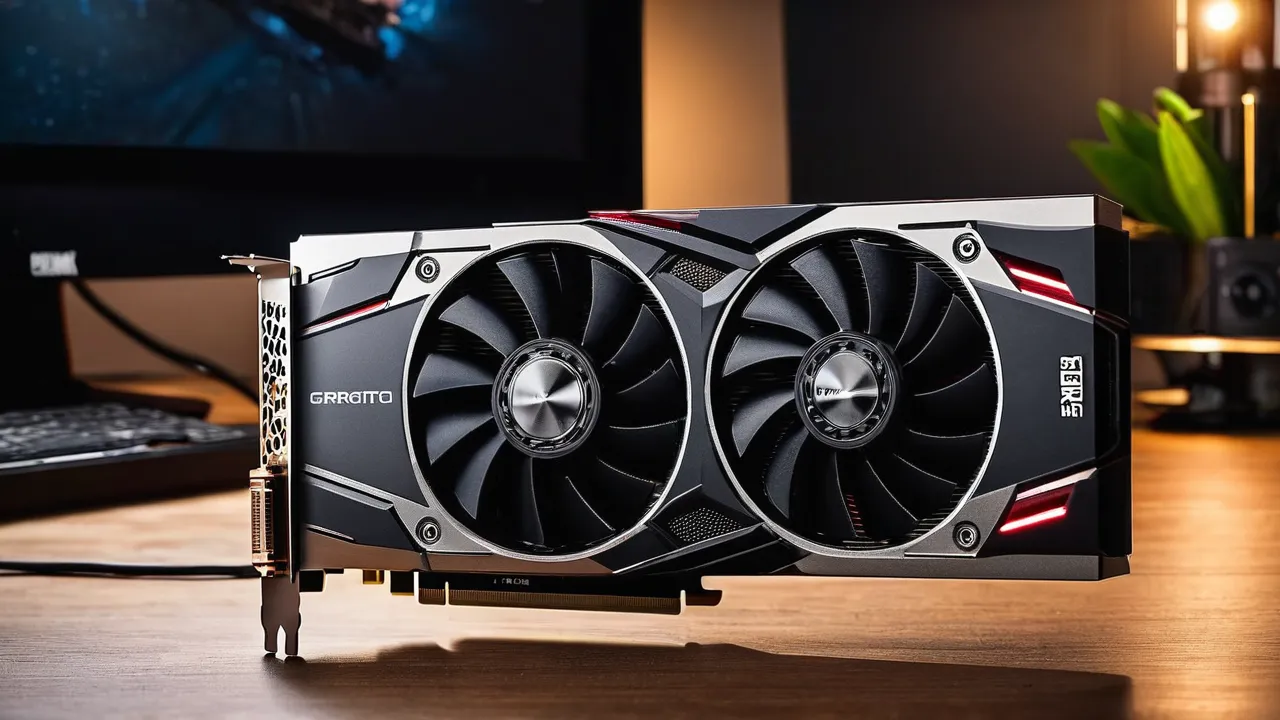
To choose a graphics card, start with what you do and which monitor you use, then confirm your power supply and case can handle the card, and finally compare driver support and warranty. The right card matches your resolution and software, rather than the highest tier available.
Start With the Work and the Monitor
A graphics card exists to draw images, so its job depends on the screen and the software. Write down your main tasks: office work with several monitors, photo and video editing, three dimensional modeling, gaming or running machine learning tools. Each puts different demands on the card.
Then note your monitor’s resolution and refresh rate. A card that drives a 1080p screen comfortably may struggle at 4K, and a card built for 4K is wasted on a modest panel. If you plan to upgrade your monitor in the next few years, buy for the monitor you will have, not the one you own now.
Office work and web browsing need very little. An integrated graphics chip in many processors handles them well, and a separate card is not required. Buying a card only makes sense if your tasks need more than integrated graphics can give, or if your processor has none.
Match the Tier to the Task
Graphics cards come in tiers, from entry level to enthusiast. Entry cards handle everyday use, multiple displays and light creative work. Mid-range cards suit 1440p gaming and most photo and video editing. High-end cards suit 4K gaming, heavy rendering and large datasets.
Do not pay for performance you will not use. A tier above your needs adds cost, heat, noise and power draw. A tier below leaves you waiting. The guide to pick is software: check the maker’s recommended requirements for your main applications and match to those.
Pay attention to memory size, since some tasks run out of it before the processor runs out of speed. Our separate guide on video memory covers how to estimate what you need. In general, higher resolutions and larger project files call for more.
Check Your Power Supply and Connectors
A card draws power through the motherboard slot and through cables from the power supply. Each card lists a recommended power supply wattage and the connectors it needs, such as 8-pin PCIe plugs or a newer high-power connector. Check that your supply has the right cables and enough capacity.
Compare the recommendation against the label on your supply. Remember that the figure assumes a complete system, including the processor, drives and fans. If your supply is old, consider whether it is still in good shape, since power supplies age.
Never force connectors, and avoid bent or poorly seated plugs, since poor contact generates heat. Turn off and unplug the computer before installing a card, and follow the card and case manuals. Our separate guide on power supply wattage explains the headroom method in detail.
Connector Math You Can Check
A few connector limits help you read a spec sheet. The motherboard slot supplies up to 75 watts, a 6-pin PCIe plug is specified for 75 watts, an 8-pin plug for 150 watts, and the newer 12 volt high-power connector for up to 600 watts. A card that lists one 8-pin plug can draw up to about 225 watts in total, while a card with two 8-pin plugs can draw up to about 375 watts. These are connector ratings, not the card’s actual use, but they tell you whether your supply has the right cables.
If the card needs a connector your supply lacks, look for an adapter only from the supply or card maker, and check the maker’s guidance before using one. Do not daisy chain a single cable to feed two high-power plugs unless the supply manual allows it.
Check Case Fit and Cooling
Cards come in many sizes. Large cards can be long, wide and tall, taking two, three or more slot widths. Measure your case’s maximum card length and check clearance for cables and fans. Small cases need compact cards.
Cooling matters. A card that fits but chokes the airflow can run hot and loud. Check that your case has intake and exhaust fans and room around the card. A dusty case also hurts cooling, so clean it as the manual advises.
Look at the card’s weight as well. Heavy cards can sag in the slot, and some come with support brackets. A bracket is a cheap way to protect the slot and the board.
How to Judge Each Criterion
Turn the checks into pass or fail questions. Tier: does the card meet the recommended graphics requirement of your main software at your monitor resolution? Power: does your supply meet the maker’s recommended wattage and have the needed plugs? Fit: is the card shorter than your case’s maximum length, and does it leave room for airflow? Support: does the maker describe a driver policy for that generation? Warranty: is the term clear, and is the seller authorized? A card that answers yes five times is a safe pick, and one that fails any item needs a fix before you buy.
Driver Support Length
A graphics card is only as useful as its software. Drivers add features, fix bugs and keep new applications working. Makers stop providing regular updates for older generations after a time, and then you rely on a frozen driver.
Before buying, check the maker’s support page for how they describe the support policy for the card’s generation. Choose a recent generation over a discounted old one if you plan to keep the card for years, because support lasts longer for newer cards.
Also check operating system support. If you use Linux or an older Windows version, confirm that drivers exist. Some professional applications certify specific drivers, so check your software’s requirements.
Warranty and Seller
Warranty terms vary by brand and sometimes by region. Read the length, whether it covers fans and coolers, and whether it transfers to a second owner. Check the process for claims and whether you ship the card at your own cost.
Buy from a reputable seller and keep the receipt. Be careful with unusually cheap offers, which can be used, refurbished or counterfeit cards. Our guide on used cards explains what to check.
If you buy a card for a work machine, think about downtime. A warranty that requires a long wait leaves your computer without graphics. Consider a card with a clear replacement process, and keep your integrated graphics available as a backup.
Features Worth Checking and Ones to Skip
Features that earn their place include enough display outputs for your monitors, support for the video connections you use, and hardware video encoding if you stream or edit. Fan stop modes help keep the card quiet at idle.
Features to treat with caution include factory overclocks, lighting and brand marketing terms. They add cost and rarely change real use. A modest cooler on a sensible card is better than a flashy design on a poor one.
Check noise and temperature expectations from owner feedback rather than from slogans. Also confirm that your motherboard has a free x16 slot and that your processor does not bottleneck the card in your tasks.
A practical sequence keeps the process calm. First, write down your tasks, monitor and budget. Second, shortlist cards in the right tier from the maker’s pages. Third, check each against your power supply, case and slot. Fourth, compare driver support statements and warranty terms. Fifth, read owner feedback for noise and heat, with a skeptical eye. If a card passes all five, it is a safe pick.
Also think about the rest of the system. A fast card paired with a slow processor or too little system memory wastes some of its potential in certain tasks, especially in games and in applications that depend on the processor. A balanced system gives better results than one extreme part.
Finally, plan the installation. Back up your work, uninstall old graphics drivers if the maker recommends it and download the current driver from the maker’s site. Keep the old card or your integrated graphics available until the new card works.
Who Should Choose Which
- Choose integrated graphics if you only do office work and browsing.
- Choose an entry or mid-range card for multiple monitors, light creative work and 1440p gaming.
- Choose a high-end card only for 4K gaming, heavy rendering or large projects.
- Skip cards that need a power supply or case you do not have, since upgrading both adds cost.
- Skip old generations if you want long driver support.
Frequently Asked Questions
How do I know which graphics card is compatible with my PC?
Check four things: a free x16 slot on the motherboard, enough case length and slot width, a power supply with the right connectors and wattage, and driver support for your operating system. Your case and motherboard manuals list the limits, and the card maker lists its own requirements on the product page.
Do I need a graphics card for office work?
Usually not. Integrated graphics in most modern processors handle documents, browsing, video calls, and several monitors comfortably. Add a card when your software lists a graphics requirement, you edit video or photos heavily, you model in 3D, or your processor has no integrated graphics at all.
Is a more expensive graphics card always better?
No. A higher tier adds speed, power draw, heat, and size that only pay off if your monitor and software can use them. Match the card to your resolution and the recommended requirements of your main applications, then spend any extra on a better warranty or cooler.
How long should a graphics card last?
Many cards serve for several years, but no maker can promise a lifespan. Longevity depends on cooling, dust, driver support for that generation, and how demanding your software becomes. Choose a recent generation with clear warranty terms if you plan to keep the card a long time.
Final Thoughts
Match the card to your work and monitor, check power and fit and favor long driver support and a clear warranty. A card you keep for years should be chosen for fit and support, not for the loudest tier.
Browse our graphics cards category and graphics card roundup, and read how we review.
Related buying guides
- Integrated vs Dedicated Graphics: Do You Need a GPU
- Power Supply Wattage for Your Graphics Card
- Used vs New Graphics Cards: Mining Risks Explained
About the author

The BuyOnceChoice Editorial Team researches durable products worth buying once. Our guides compare published specifications, warranty terms, expert review consensus, and verified owner feedback. We do not conduct our own product trials. See How We Review and our Editorial Policy for our standards.