Graphics Card Maintenance: Cleaning, Paste and Drivers
Keep a graphics card healthy with a simple schedule for dust cleaning, temperature checks, fan care, and clean driver updates, plus safety steps.
 By BuyOnceChoice Editorial Team
Updated November 16, 2026
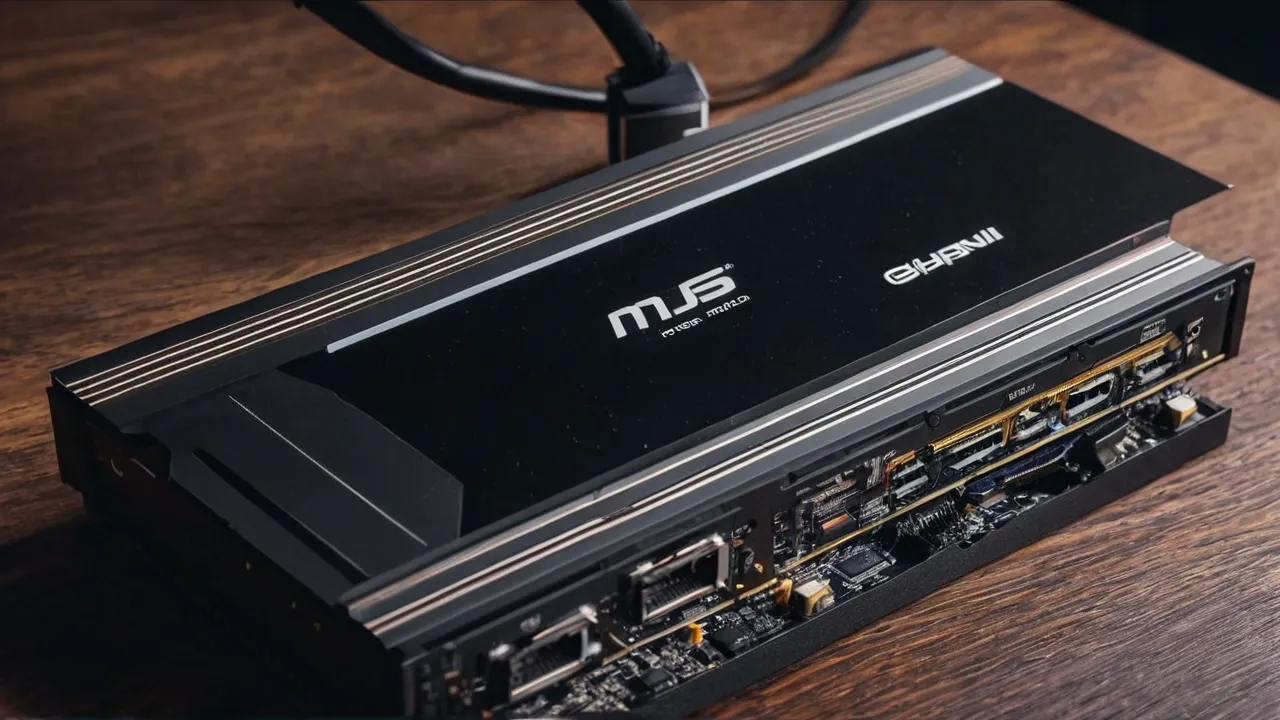
Graphics card maintenance comes down to three jobs: clear dust from the card and case every few months, check temperatures and fan behavior, and keep drivers current with a clean install when problems appear. Power off and unplug before cleaning, and never spray liquids inside. Most cards need no other upkeep during normal use.
Safety First
Power off and unplug before cleaning. Shut the computer down, switch off the power supply, unplug the power cord and press the power button once to drain stored charge. Touch bare metal on the case to discharge static, or use an anti static strap as the maker advises.
Never spray liquids inside the computer. Do not use household cleaners, water or alcohol sprays on a card in place. Moisture and residue can damage circuits and short connections. Use dry methods: a soft brush and short bursts of compressed air, or a small vacuum made for electronics, kept at a distance from the card.
Work in a clean, lit space, away from carpet that builds static. Handle the card by its edges and metal bracket. Do not touch the gold contacts or the circuits. If you remove the card, put it on an anti static surface. Do not remove the cooler or heatsink, since that can void the warranty and damage the card. If you are unsure, follow your case and card manuals, or ask a qualified technician.
Dust: Where It Hides and How to Clean It
Dust builds up in several places.
- On the fan blades, which unbalances them and reduces airflow.
- Between the fins of the heatsink, which blocks air and holds heat.
- On the filters at the front and bottom of the case.
- On other fans and radiators in the case.
Dust acts like insulation, so heat stays in the card and the fans work harder. A dusty card tends to run warmer and louder.
How to clean it, step by step:
1. Power off and unplug, and ground yourself.
2. Open the case and look at the card, the fans and the filters.
3. Hold each fan blade still with a finger or a soft tool, so that it does not spin freely. A fan spun by compressed air can overspeed and be damaged.
4. Blow short bursts of compressed air through the heatsink fins, from the side that the fan pushes air from, holding the can upright and a few inches away.
5. Use a soft brush to loosen dust on the fan blades and edges, and move it away from the card.
6. Clean the case filters. Take them out, brush or rinse them if the maker says they are washable, and dry them fully before you put them back.
7. Clean other fans and the processor cooler the same way.
8. Close the case, plug in and power on.
Do not blow dust into the power supply. If you can, take the computer outside or to a well ventilated spot to avoid breathing dust, and wear a mask if you are sensitive.
Cleaning Schedule
- Every month or two: look at the filters and clean them if dusty.
- Every three to six months: check the card and fans for dust, and clean if needed.
- More often: if you have pets, smoke, carpet or a dusty room, or if the computer sits on the floor.
- Less often: in a clean, filtered room, if temperatures stay normal.
These intervals are starting points. Let the temperatures and the dust you see decide.
Check Temperatures and Fans
Monitoring software shows the card’s temperature, fan speed and load. Keep it handy, and check it after cleaning and when the system sounds louder.
What to look for:
- Idle temperature that is stable and not unusually high. A rise over time can mean dust or a fan problem.
- Load temperature that stays below the maker’s stated limit. Check the card’s specifications and the maker’s documentation for the maximum temperature and for the point where the card slows itself down to protect itself.
- Fan speed that rises with temperature, then falls when the load ends.
- Fans that stop at low load, if the card has a zero RPM mode, and start again when it warms up.
- Any fan that does not spin, wobbles or makes grinding noise.
If a fan fails or the card throttles often, stop heavy use and check the warranty. A fan that is stuck may have dust or an obstruction, such as a cable touching a blade. Move cables away from the fans. Do not push the blades by hand while the power is on.
If temperatures rise after a long period of use and cleaning does not help, the thermal paste or pads may have aged. That is a repair job, and opening the card can void the warranty, so contact the maker or a qualified repair service first.
Case Airflow
A card needs cool air. Check these items.
1. Intake fans at the front or bottom bring in cool air, and exhaust fans at the rear and top push hot air out.
2. Filters are clean, since a clogged filter chokes the intake.
3. Cables are tidy and do not block the airflow path.
4. The case has space around it, and is not pressed against a wall or placed in a closed cabinet.
5. The room is not too hot. High room temperature raises every temperature in the case.
A case with poor airflow will run a good card hot. If temperatures stay high, adding a fan or changing fan positions can help, and a gentler fan curve can reduce noise. Our graphics cards category lists cards with their cooling designs.
Driver Updates and Clean Installs
Drivers are software that lets the system use the card. Updates can fix bugs, improve support for new software and sometimes change fan or power behavior.
How to handle drivers:
1. Get drivers from the card maker’s official site or its update tool.
2. Read the release notes if you are troubleshooting a specific problem.
3. If the system is stable and you do not need new features, you do not have to update every release.
4. Update when you add new software, a new monitor or when a known issue affects you.
5. Create a restore point or note the current version before an update, so that you can go back.
A clean install removes old driver files and settings before installing the new version. Many installers offer a clean install option. Use it if you see crashes, odd display behavior or after a major version change. After the install, restart, check the display settings and confirm that the refresh rate and resolution are right.
If a new driver causes problems, roll back to the previous version, or install an older one from the maker’s site. Keep the installer for a version that worked well.
Cables and Connectors
Check the power connectors and the display cables when you clean. Make sure power plugs are fully seated and show no signs of heat, such as discoloration or a smell of burning. If you see damage, stop using the card and contact the maker. Check that display cables are firm in their ports, and that no cable is strained or sharply bent. Replace a bent or frayed cable.
Check that the card sits firmly in its slot and that the bracket screws are tight. A heavy card may need a support bracket, as the maker advises.
Who Needs What
- Light users in a clean room: check filters and temperatures a few times a year, and update drivers when needed.
- Gamers and creative users: monitor temperatures, clean every few months and keep notes on driver versions.
- Pet owners and smokers: clean more often.
- Small case owners: pay close attention to airflow and temperatures.
- Anyone with a card under warranty: avoid opening the cooler.
Read the how we review page for the way we weigh long term care, and compare picks in our best graphics card roundup.
A Simple Maintenance Calendar
Pick a date each season. On that date, switch off and unplug, clean the filters and check the fans for dust. Boot up, open the monitoring tool and note the idle and load temperatures. Compare them with the last note. If they have risen noticeably, clean more thoroughly and check the airflow. Check for a driver update only if you have a reason. Write the date and the readings in a small log. The log turns a vague feeling about noise into a clear trend.
Frequently Asked Questions
How often should I clean my graphics card?
Check it every three to six months, and clean filters more often. Dusty homes, pets and carpet call for shorter intervals. Let temperatures and visible dust guide you. Always power off and unplug first, and never spray liquids inside the computer.
Is it safe to use compressed air on a graphics card?
Yes, with care. Use short bursts from a few inches away, hold the can upright and keep the fan blades still so that they do not overspin. Do it with the power off and the cord unplugged, and ground yourself.
What temperature is too hot for a graphics card?
The limit depends on the model, so check the maker’s specifications. Many cards slow themselves down when they get very hot to protect the chip. If your card reaches that point often, clean the dust, check the fans and improve case airflow.
Do I need to update graphics drivers every month?
No. If your system is stable, you can update when you add new software, a new monitor or when a known issue affects you. Use the maker’s site, and try a clean install if you see crashes or display problems.
Final Thoughts
Clean dust every few months with the power off and unplugged, never use liquids inside the case, watch temperatures and fans, and keep drivers current when you have a reason. Use the clean install option for problems. A little regular care keeps the card cooler, quieter and longer lived.
Related buying guides
- Graphics Card Power Connectors: Safe Plugging
- How Long Do Graphics Cards Last? Lifespan Guide
- How Much VRAM Do You Need? 1440p, 4K and Work
About the author

The BuyOnceChoice Editorial Team researches durable products worth buying once. Our guides compare published specifications, warranty terms, expert review consensus, and verified owner feedback. We do not conduct our own product trials. See How We Review and our Editorial Policy for our standards.