4K 120Hz Gaming Through a Receiver: Passthrough Checklist
Not every HDMI port on a receiver supports 4K at 120Hz. Check each input and the output, plus the cables, before you connect a console or PC.
 By BuyOnceChoice Editorial Team
Updated November 16, 2026
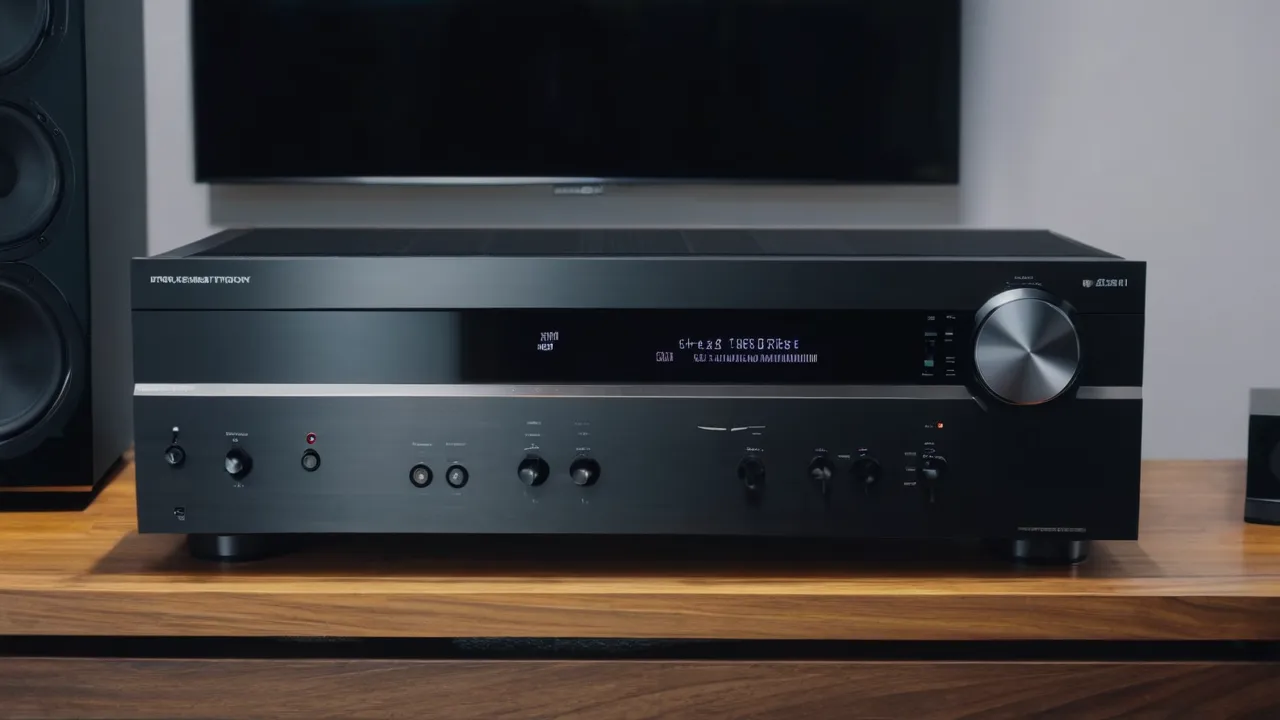
To get 4K at 120Hz through an AV receiver, every link in the chain must support it: the source, the cable, the receiver’s input, the receiver’s output, and the TV. Receivers often support the full feature set on only some of their HDMI ports, so read the specification port by port instead of trusting a single logo on the box.
Why the receiver in the video path complicates things
Most guides cover eARC, where the TV sends audio back to the receiver and the receiver stays out of the video path. That works for many setups. But when you connect a game console, PC or disc player to the receiver, the video signal passes through it on the way to the TV. Then the receiver’s HDMI hardware becomes part of the video chain, and it has to handle the same resolution, refresh rate and extras as the source.
Check the receiver’s spec sheet for a statement such as the supported maximum video format, plus a list of which inputs support it. Some units have a mix of fully capable and older ports.
The checklist, link by link
Work through these in order.
Source
- Confirm the console, PC or player can output 4K at 120Hz. Check the output settings menu.
- Check any extras you want, such as variable refresh rate or auto low latency mode, and whether the source supports them.
Cable
- Use a cable rated for the bandwidth. High speed or ultra high speed certified cables are needed for the highest formats. Look for a certification label on the cable packaging.
- Keep runs reasonable. Very long passive cables can fail at high bandwidth, so a certified cable or an active option may be needed for long runs.
Receiver input
- Check the specification for each HDMI input: maximum resolution and refresh rate, HDR formats, variable refresh rate, and any quick media switching features.
- Note which ports are labeled for high frame rate use. The manual often marks specific inputs for this purpose.
- Verify the input mode in the receiver menu. Some receivers have an enhanced format setting that must be turned on per input.
Receiver output
- Confirm the main HDMI output supports the same features as the input. The output is the last step before the TV.
- Note whether the receiver has more than one output and which one supports the highest bandwidth.
TV input
- Connect the receiver’s output to a TV port that supports 4K at 120Hz and any other feature you need. Many TVs only support it on one or two ports.
- Enable the TV’s enhanced input mode for that port if it has one.
Bandwidth, features and what they unlock
HDMI 2.1 raised the available bandwidth to a maximum of 48 gigabits per second, up from 18 gigabits per second for HDMI 2.0, which is why 4K at 120Hz generally needs HDMI 2.1 hardware and an ultra high speed certified cable. Features that tend to come with it include higher frame rates at 4K, variable refresh rate and auto low latency mode. Some devices advertise HDMI 2.1 but support only part of the feature set, so look at the specific list. Some receivers support 4K at 120Hz but not 8K, and some support both. Check the manual for the exact formats and any limits.
If your gear does not line up, you can fall back to a lower refresh rate or resolution and still use the receiver for audio.
8K, HDR, and other extras
Some receivers advertise support for resolutions above 4K, and many support multiple HDR formats such as HDR10, Dolby Vision and HLG. Support for each can differ by port and by firmware, so make a short list of the formats your TV and sources use, and check the receiver for each. If a format is not supported in passthrough, the receiver may fall back to a basic mode or drop the format entirely, which can leave the TV showing a plain picture.
Dynamic HDR formats rely on metadata passed along with the picture. A receiver that cannot pass that metadata may disable the feature. This is another reason to read the product manual and not rely on a single feature name on the box.
Latency and gaming extras
Gamers care about low latency. Features like auto low latency mode switch the TV into a fast response mode automatically when a game console is detected. The receiver has to pass the signal that triggers it. Some receivers add their own video processing, which can add delay, and many offer a pass through mode that skips processing. Look for a game mode or direct pass option in the menu and use it for fast titles.
Variable refresh rate keeps the picture in step with the frame rate of the game and reduces tearing. Not every receiver supports it on every input, and some support it only with certain firmware. Check whether your console and TV support it, and then check the receiver.
Common problems and fixes
- No picture or flickering: try a different cable, then a different input port.
- Image limited to 60Hz: check the source’s output setting and the receiver’s enhanced format mode.
- Features missing, such as variable refresh rate: check whether the receiver and TV support it on the port in use.
- Audio dropouts: check the audio format setting and try eARC settings on the TV.
- Firmware: look for updates from the manufacturer. Some receivers add features through updates, and the manual explains how to apply them.
A quick spec sheet checklist helps when you compare models. Look for the maximum video format on each input, the number of inputs with full support, whether the output matches, support for variable refresh rate and auto low latency mode, which HDR formats pass through, and whether the manufacturer lists any limits when more than one output is active. If a spec sheet leaves a line blank, check the manual or ask the manufacturer before you buy.
Planning the connections
Draw a simple diagram of which source goes to which port. Put your highest bandwidth source on the port with full support. Put older devices such as a cable box on legacy ports. Our guide on how many HDMI inputs a receiver needs has a worksheet for that planning. If you have only one fully capable port and two high end sources, you may want to connect one source directly to the TV and use eARC for audio.
Choosing a receiver with this in mind
If gaming at high frame rates matters to you, prefer receivers that list full bandwidth on every input, or at least on the number of ports you need. Do not assume that a receiver with the right logo supports every feature everywhere. Read the specification, not just the marketing sentence. Our AV receivers section and best AV receiver roundup can help you shop.
Verdict by Buyer Type
- Console and PC gamers who want high frame rates: check every link in the chain.
- Movie fans using a disc player and streaming box: standard video modes work on most ports, so focus on HDR and audio formats.
- Owners of older receivers: consider whether to connect the high bandwidth source straight to the TV.
When to skip the receiver for video
If your receiver does not support the formats you want, you do not have to replace it. A common approach is to connect the high bandwidth sources directly to the TV, then send audio to the receiver using eARC. This preserves the video features and keeps the receiver in charge of sound. You lose the convenience of one input switch, but you avoid the limits of an older receiver. It also reduces the number of links in the chain that can fail.
Choose based on how much you care about each feature and how many sources need the highest bandwidth. If you have a single console and a single TV, the direct approach is often the simplest.
Frequently Asked Questions
Does my AV receiver support 4K 120Hz passthrough?
Check the specification port by port. Receivers often support the full feature set on only some HDMI ports, and the output must match the input. Look for a stated maximum format, the list of capable inputs, and any enhanced format setting you must enable in the menu.
Do I need an ultra high speed HDMI cable for 4K 120Hz?
Generally yes. 4K at 120Hz needs HDMI 2.1 bandwidth, so use a cable certified as ultra high speed and keep runs reasonable. Very long passive cables can fail at high bandwidth, so choose a certified cable or an active option for long runs.
Why is my picture limited to 60Hz through the receiver?
Common causes are the source’s output setting, a port without full support, a receiver that needs its enhanced format mode enabled for that input, or the TV port not set to its enhanced mode. Try a different cable and port, then check firmware updates.
Can I connect my console directly to the TV and still use the receiver?
Yes. Plug the console into a TV port that supports 4K at 120Hz and send audio to the receiver with eARC. You keep the video features and the receiver handles sound. You lose the single input switch, but you avoid the limits of an older receiver.
Final Thoughts
A receiver is a link in a chain, and the weakest link sets the limit. Check each port and cable, confirm that settings are enabled, and consult the manual for the exact formats supported. For how we evaluate specification claims, see How We Review.
Related buying guides
- 5.2 vs 7.2 vs 9.2 Receivers: Channel Count Compared
- Crossover Settings Explained: Large vs Small Speakers
- Receiver HDMI Inputs: How Many Do You Need?
About the author

The BuyOnceChoice Editorial Team researches durable products worth buying once. Our guides compare published specifications, warranty terms, expert review consensus, and verified owner feedback. We do not conduct our own product trials. See How We Review and our Editorial Policy for our standards.