Ultrawide vs Dual Monitors for Work
Compare a single wide screen against two panels using desk width, window management, cable needs and what happens when one screen fails.
 By BuyOnceChoice Editorial Team
Updated November 16, 2026
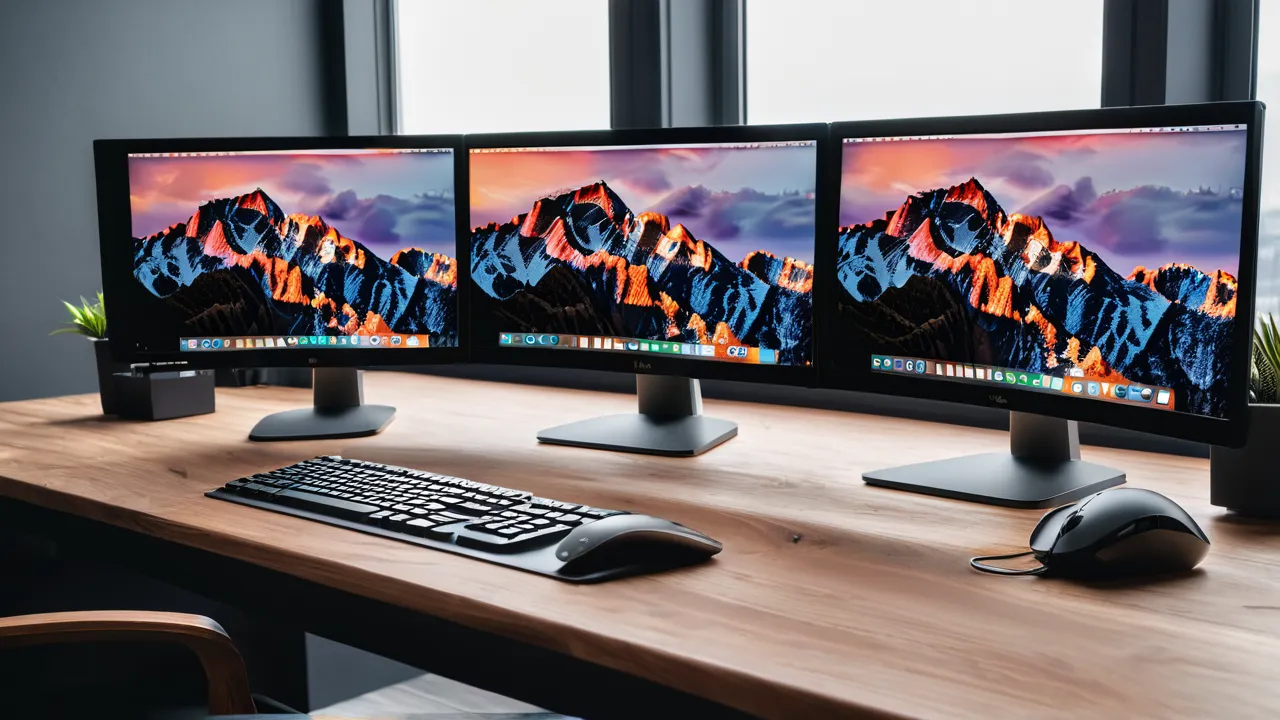
Choose an ultrawide if you want one seamless canvas, a tidy desk and fewer cables, and choose two monitors if you rely on separate windows, want to rotate one screen or want a cheaper fix when a panel fails. Desk width, the way you manage windows and your tolerance for a bezel seam decide the question more than any spec.
Start With Desk Width
Width is the first constraint, and many buyers skip it. A 34 inch class ultrawide is about 32 inches wide in practice, and larger 38 to 40 inch class models are wider still. Two 27 inch monitors side by side measure well over 46 inches once you include the bezels and stand feet. Always read the exact width on the product page, because models differ.
Your desk must hold the screen or screens and still leave space for a keyboard, a mouse and notes. A good rule is to leave a few inches on each side of the panel group so the stands are not hanging off the edge. If the desk is narrow, one ultrawide is almost always easier to fit.
Also measure depth. Both layouts push you to sit at a comfortable arm’s length, and a curved ultrawide sits deeper than a flat panel of the same size. Our monitor sizing guide category explains how distance and size relate.
How You Manage Windows
An ultrawide gives you a continuous workspace. A long timeline, a wide spreadsheet or three columns of documents fit without a gap. Window snapping tools, either built into the operating system or from third parties, let you divide the screen into zones, so a single ultrawide can behave like two or three screens.
Two monitors give you a physical boundary. Maximizing a window on one screen keeps it from spilling over, which many people like for video calls, reference material and chat that you want parked on the side. Full-screen apps also behave more simply because each screen has its own edges.
The decision rule is easy to apply. If you often work in one large document, such as a spreadsheet, a design canvas or a code editor with side panels, an ultrawide is more comfortable. If you often keep several separate apps open at once and glance between them, two monitors are less fussy. Try snapping a few windows on your current screen to learn which style you prefer.
Consider your meetings as well. If you share your screen often, sharing one monitor out of two is easier than sharing a very wide canvas, since remote viewers see a clean single window and your notes stay private on the other screen. On an ultrawide, you can share a single window or a region, but you need to remember to avoid sharing the whole width, which can look tiny on a small video call window.
The Bezel Seam and Head Movement
With two monitors, a gap of an inch or so runs down the middle of your view. If your main window sits in the center, you will look straight at that seam. Many users solve this by centering the primary monitor and using the second as a side screen, which means you turn your head toward one side more.
An ultrawide has no seam, and its gentle curve keeps the far edges closer to your eyes. But content at the extreme edges can still be uncomfortable to read, and large flat panels can distort angles at the sides. Most people end up using the central two thirds for work and the sides for tools.
Think about your neck. A single screen centered on your eyes means less rotation. Two screens of equal use split your attention left and right, and over long days that adds up. If you are mostly using one screen, the second is a sidecar, and you can place it accordingly.
Pixel Counts Side by Side
A common 34 inch ultrawide at 3,440 by 1,440 has 4,953,600 pixels. Two 27 inch 1440p monitors at 2,560 by 1,440 each have 7,372,800 pixels together, which is about 49 percent more screen area to place windows on. The ultrawide has no seam, but two monitors give more total space, plus the option to rotate one. Read the actual resolution on each product page, because larger ultrawides and taller formats change the math. Then ask how much of that extra space you would actually fill with windows you use every day.
Resolution, Sharpness and Scaling
Many ultrawides are 34 inches at 3440 by 1440, which has a similar pixel density to a 27 inch 1440p panel, so text looks the same as the common size. Taller ultrawide formats and larger sizes exist, and they may use higher resolutions. Check the pixel count rather than assuming.
Two panels give you flexible mixes. You can pair a large main screen with a smaller secondary one, or rotate one panel to portrait for reading long documents or code. That flexibility is hard to match with a single curved panel.
Mixed resolution setups can cause scaling quirks, as windows may change size when dragged across screens. If you run two monitors, buying the same model avoids most of this. Identical panels also match in color and brightness, which is visible when a window straddles both.
Cables, Ports and Your Computer
An ultrawide needs one cable and one video output. Two monitors need two, and your computer must have enough outputs. Many laptops can drive two external screens through a dock but not directly, and some have limits on output counts. Check the manual for the maximum number of displays and the supported resolution before buying.
If you use a laptop with a single USB-C or Thunderbolt port, a dock or a monitor with a built-in hub may carry both screens. Make sure the laptop and the dock support the display modes you want. Check cable and charger ratings as well, since wrong cables are a common reason an external screen stays blank.
An ultrawide is also friendlier to simple setups. One screen, one cable and one power adapter are easy to move and easy to document for a family member who needs to reconnect it.
Stands deserve a word too. Two monitors double the number of stands, and cheap stands that only tilt force you to prop screens on books. Check that each panel has height adjustment or a standard mounting pattern, and consider a dual arm, which also lets you pull the pair closer together and reduce the seam. An ultrawide is heavy, so confirm the weight rating of any arm against the monitor weight listed by the maker.
A Short Scorecard
Score each line from one to three for your own work, then compare the totals. Wide single documents such as spreadsheets and timelines favor the ultrawide. Many separate apps and chat windows favor two monitors. A narrow desk favors the ultrawide. A need for a portrait screen favors two monitors. A wish for one cable and a tidy desk favors the ultrawide. A worry about a single point of failure favors two monitors. If the totals are within a point of each other, buy the layout your desk fits best, because desk width is the one constraint you cannot adjust cheaply.
Repair Cost and What Happens When One Fails
A failure is a point where the two layouts differ most. If one of two monitors fails, you keep working on the other, and replacing a single mid-sized panel costs less than replacing a large ultrawide. With an ultrawide, a failure takes the whole workspace offline until you repair or replace it.
On the other hand, one panel has fewer parts to fail, and one warranty to track. Read the warranty terms on the product page, especially what the maker says about dead pixels and replacement shipping, because policies differ. Panels are rarely repaired at home, and screen repair is often not economical, so warranty length is the real protection.
For a buy-once approach, think about spare capacity. Two monitors give you built-in redundancy. A single ultrawide rewards you with simplicity and a tidier desk. Decide which risk you care about more.
Who Should Choose Which
- Choose an ultrawide if your desk is at least wide enough for it, you work in wide files and you value a clean setup with one cable.
- Choose two monitors if you keep many separate apps open, want a portrait screen, or want cheaper partial replacement.
- Skip ultrawide if your desk is narrow or shallow, or your computer cannot drive the resolution.
- Skip dual monitors if the seam bothers you or your laptop supports only one external output.
Frequently Asked Questions
Is an ultrawide better than two monitors for work?
It depends on your windows and desk. An ultrawide gives one seamless canvas, one cable, and a tidy desk, which suits wide documents. Two monitors give separate windows, a portrait option, and partial redundancy if one fails. Measure your desk width first, since it limits the choice.
Does an ultrawide have enough screen space to replace two monitors?
Often for single wide tasks, but not always in total area. A 34 inch ultrawide at 3,440 by 1,440 has fewer pixels than two 27 inch 1440p screens. Window snapping tools help divide the ultrawide into zones. Check how many windows you keep open.
Is a dual monitor setup harder on the neck?
It can be if both screens get equal use, because you turn your head left and right. Center your main screen and use the second as a side screen, and keep both at the same height. A single ultrawide centered on your eyes needs less head rotation.
Which is cheaper to replace if a screen fails?
Two monitors, because you keep working on one while you replace the other, and a mid-sized panel costs less than a large ultrawide. An ultrawide failure takes the whole workspace offline. Warranty length and dead pixel terms matter most for either option.
Final Thoughts
Measure desk width, then decide between one seamless canvas and two flexible screens. Window habits come next: large single documents favor an ultrawide, multiple separate apps favor two panels. Finally, think about failure and warranty, since that is where the layouts differ in cost.
Before you buy, check output limits on your computer and read how we weigh features on how we review. The productivity monitor roundup gives starting points once the layout is settled.
Related buying guides
- USB-C Monitor vs Docking Station for Laptops
- 27 Inch Monitor: 1440p vs 4K for Work
- 60Hz vs 144Hz Monitors: What Work Really Needs
About the author

The BuyOnceChoice Editorial Team researches durable products worth buying once. Our guides compare published specifications, warranty terms, expert review consensus, and verified owner feedback. We do not conduct our own product trials. See How We Review and our Editorial Policy for our standards.