HDR on Monitors: Does It Matter for Work
HDR labels vary from basic to demanding. See what the tiers mean, why most office work gains little, and which creators and viewers should look for real HDR.
 By BuyOnceChoice Editorial Team
Updated November 16, 2026
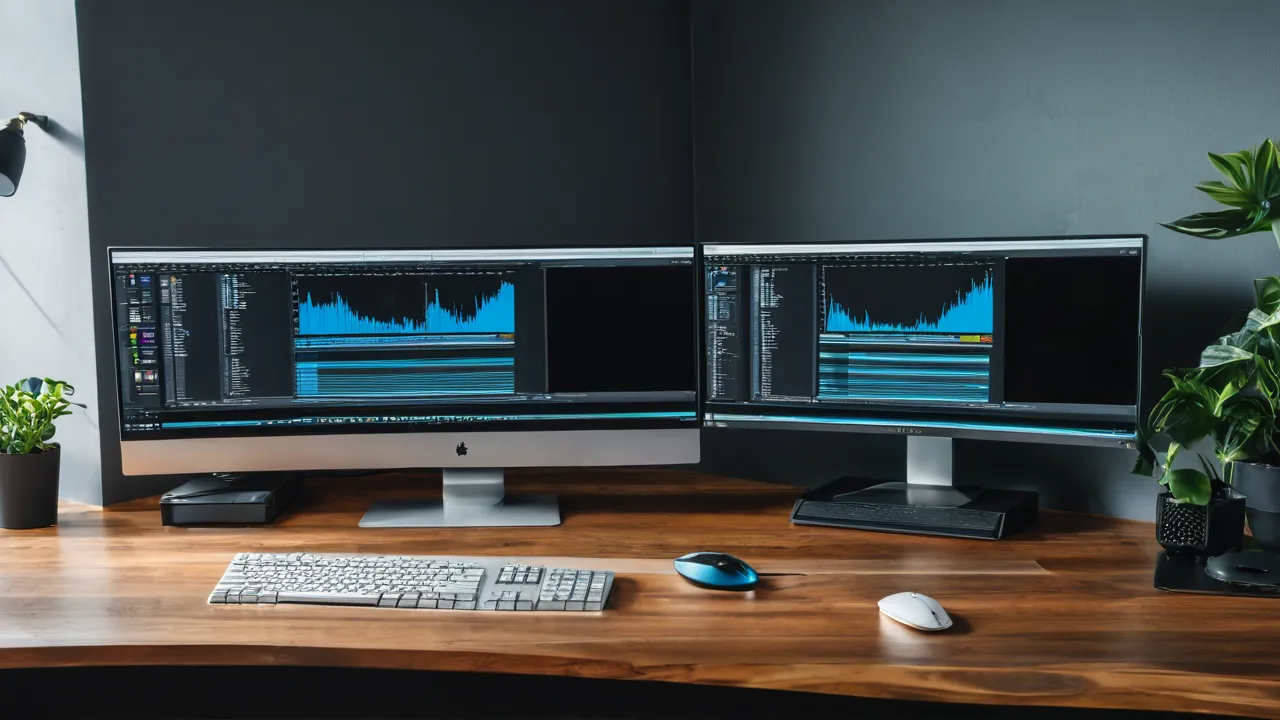
HDR on a monitor is worth it only if you watch HDR video, play HDR games or edit HDR content, and the monitor can really deliver it. For office work such as documents, spreadsheets and email, HDR adds little and can make the desktop look washed out. Many entry level HDR labels describe a signal, not a better picture.
What HDR Does
HDR stands for high dynamic range. A standard dynamic range screen shows a limited span from dark to bright. An HDR screen aims to show brighter highlights and deeper darks in the same image, along with a wider range of colors. A sunlit window and a shaded room can both keep detail in the same scene.
For that to work, the monitor needs three things: enough peak brightness, a way to make dark areas dark while bright areas stay bright, and a wide color range. The content must also carry HDR information, and the computer, cable and software must pass it along.
On a good HDR display, a well mastered movie or game can look striking. On a weak one, HDR mode changes the image without improving it, and some content looks dimmer or flatter than in standard mode. That is why the label alone tells you little.
Reading the Label Tiers
Labels vary. Here is a plain guide, without hype.
- HDR10 or HDR support: this usually means the monitor accepts an HDR signal. It does not say how well the monitor displays it. A monitor can accept HDR10 and still have low brightness and no local dimming.
- DisplayHDR tiers: a certification program by the standards body VESA, with tiers such as 400, 600 and 1000, where the number refers to peak brightness in nits for the tier. Higher tiers add requirements for local dimming, color range and black levels. Entry tiers are modest. Check the certification list or the maker’s page for the exact requirements of each tier.
- True black or OLED tiers: these cover self lit pixels, which can turn off completely for deep blacks.
- Dolby Vision and HDR10 plus: other HDR formats, which depend on support in the content and the device.
- Marketing phrases such as HDR ready or HDR effect: loosely defined, and they may refer to software processing.
When you compare, look for measured numbers on the product page: peak brightness, contrast, number of dimming zones if any, and color coverage. If the page gives a label with no numbers, treat it with caution.
A monitor with local dimming controls backlight zones, so bright and dark parts of the image can differ. Monitors without it, or with only a few zones, can show glowing halos or gray blacks in HDR. Self lit panels handle contrast at the pixel level, though they have their own limits at high brightness and with static content.
Why Work Rarely Needs It
Most office work uses standard dynamic range content. Documents and spreadsheets are white pages with black text. Web pages, email and video calls are standard dynamic range as well. HDR gives them no benefit.
Issues you may see:
- Turning on HDR in the operating system can make standard content look dim or washed out, since the system maps it into the HDR space. You may need to adjust the brightness for standard content.
- High brightness is tiring in a dim room. For long reading, a comfortable brightness matters more than peak numbers.
- HDR mode may disable some settings on the monitor, such as picture presets or brightness controls.
- Calibration is harder, because HDR uses different rules.
- Some programs handle HDR poorly, and colors may look wrong.
If you work with text and numbers, a good standard monitor with sharp text, a comfortable brightness, matte coating and a good stand serves you better than an HDR label. Our monitors category covers these basics.
Who Benefits
HDR matters in a few cases.
- Video editors and colorists who deliver HDR content, using monitors designed for the purpose, with proper calibration.
- Photographers who edit for HDR displays, which is a niche.
- Gamers and movie watchers who use the monitor for entertainment, and who own a monitor with strong HDR hardware.
- Anyone whose work product is shown on HDR screens and needs to be checked.
For these users, the monitor’s actual HDR hardware matters, as do the software settings and the content. A monitor with local dimming or a self lit panel and high peak brightness shows the benefit, and an entry model may not.
If you are unsure, ask whether you will use HDR at least a few times a week. If not, do not pay for it.
Settings and Compatibility
To use HDR, every link in the chain must support it.
1. The monitor must have HDR support, and the mode must be switched on in its menu if it is not automatic.
2. The connection must carry it, with a cable and port rated for the bandwidth. Check the versions of HDMI or DisplayPort.
3. The graphics card and drivers must support HDR output.
4. The operating system must have the HDR option turned on in the display settings.
5. The application or the content must be HDR. Many streaming services and games need their own HDR setting.
6. Set the brightness for standard content, since the desktop may look dim.
If the picture looks wrong, switch HDR off in the operating system and check the standard mode. Turn it on only when you play HDR content, if your system allows quick switching. Some systems switch automatically. If the colors look washed out, adjust the standard content brightness setting.
On laptops, an external HDR monitor may use more power. Use HDR when plugged in.
Cost and Trade-Offs
Monitors with real HDR hardware cost more. Local dimming zones, bright backlights and self lit panels add cost. At the lower end of the price range, HDR labels often come with modest hardware.
Trade-offs:
- Money spent on HDR is money not spent on the stand, the resolution or the ports.
- Bright, high contrast panels can use more power and run warmer.
- Some self lit panels risk uneven wear with static content, so check the maker’s guidance on screen savers and static elements.
- Local dimming can cause visible halos on text in some monitors.
- HDR monitors may have more complex menus and settings.
Think about the total cost. If you also need a good stand, a USB hub and a warranty, set the budget for those first. Then see what HDR you can afford without compromising the rest.
Who Should Choose What
- Office work, spreadsheets and writing: skip HDR, and choose by text quality, ergonomics and ports.
- Mixed use with some movies: a monitor with a real HDR tier, if the price is fair, though you will not lose much by skipping it.
- Gaming and entertainment: a monitor with strong HDR hardware, checked against the tier requirements.
- HDR content creation: a monitor built for the purpose, with calibration support.
Compare options in our best productivity monitor roundup, and read the how we review page for how we weigh labels.
A Worked Example
A bookkeeper looks at a monitor with an HDR label and a lower price tier. The page lists a modest peak brightness, no local dimming and no zone count. The bookkeeper works in documents and spreadsheets, so HDR content never appears. The bookkeeper chooses a standard monitor with a matte coating and a height adjustable stand, and spends the savings on a better warranty. A video editor who delivers HDR work would make the opposite choice, and would look for a monitor with the specifications the work requires.
Questions to Ask Before Paying for HDR
Will I use HDR content every week? Does the page list real numbers, such as peak brightness and local dimming zones? Which certification tier does it hold, and what does the tier require? Does the monitor look right in standard mode? What do independent reviews say about how the HDR mode looks in practice? Are there trade-offs I would accept, such as a higher price or glossy panel? Answering these keeps you from paying for a label.
Frequently Asked Questions
Is HDR worth it on a monitor for work?
Usually not. Office work is standard dynamic range, and HDR adds little. It is worth it if you watch HDR video, play HDR games or edit HDR content on a monitor with real HDR hardware. Otherwise spend on the stand, text quality and ports.
What is the difference between HDR10 and DisplayHDR?
HDR10 is a signal format that the monitor can accept. DisplayHDR is a certification program from VESA with tiers that set minimum requirements for brightness and other features. A monitor can accept HDR10 and still perform modestly, so check the tier and the numbers.
Why does my desktop look washed out in HDR mode?
The operating system maps standard content into the HDR space, and the result can look dim or flat. Adjust the brightness for standard content in the display settings, or turn HDR off when you are not watching HDR content.
Does HDR cause eye strain?
There is no firm rule. Very bright highlights in a dim room can be tiring for some people. For long work sessions, choose a comfortable brightness, good room lighting and regular breaks, and use standard mode for documents.
Final Thoughts
HDR is a feature for HDR content, not for documents. Look past the label to the real numbers, check the tier and the settings and spend on text quality, ergonomics and ports first. Turn HDR on when you watch HDR content and off when you work.
Related buying guides
- How Long Do Monitors Last? Lifespan Guide
- How to Choose a Monitor for a Home Office
- IPS vs VA vs OLED Monitors for Office Work
About the author

The BuyOnceChoice Editorial Team researches durable products worth buying once. Our guides compare published specifications, warranty terms, expert review consensus, and verified owner feedback. We do not conduct our own product trials. See How We Review and our Editorial Policy for our standards.