Monitor Arm Buying Guide: VESA, Weight, Reach
Learn the four checks that decide whether a monitor arm holds your screen steady, from VESA hole pattern to clamp thickness and the warranty fine print.
 By BuyOnceChoice Editorial Team
Updated November 16, 2026
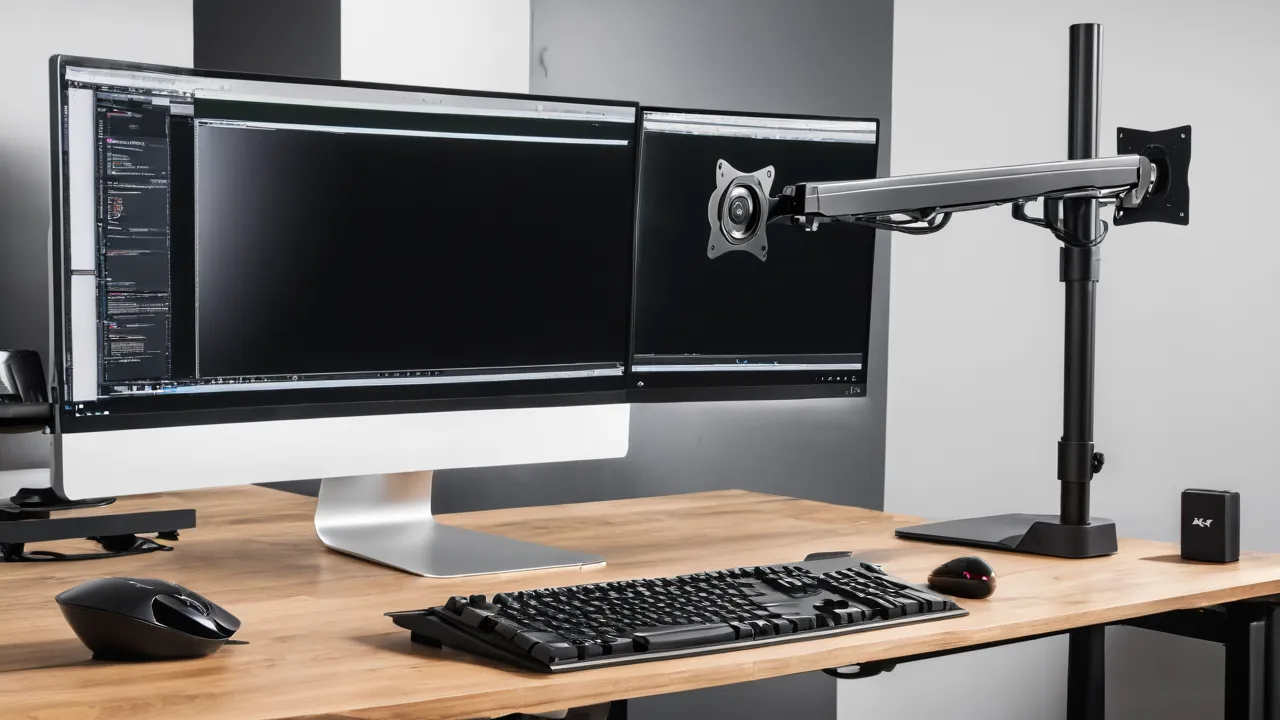
To choose a monitor arm, confirm that your monitor has VESA mounting holes, that its weight sits inside the arm’s stated range, and that your desk edge is thick enough and solid enough for the clamp. Those three checks rule out most bad purchases before you ever compare features like cable clips or swivel range.
Arm makers write most of the articles on this topic, so they emphasize their own designs. This guide approaches it as a buy-once decision: which measurements matter, which arm mechanisms suit which screens, and what to read in the warranty before you pay.
Confirm the Monitor Can Mount at All
Flip the monitor or check the manual for a square pattern of four screw holes on the back. This is the VESA pattern, usually listed as two numbers in millimeters, such as 75 by 75 or 100 by 100. Most arms support the common patterns, but a few monitors, especially some curved models, have recessed holes, a missing pattern, or a slim back panel that needs spacer hardware.
If the holes are recessed, the arm’s screws may be too short. Look for an arm that includes spacers or buy extension screws from the arm maker. If there are no holes at all, you can sometimes use an adapter bracket that clamps to the stand mount, but read the adapter’s weight limit carefully. When in doubt, the monitor’s own product page lists the VESA pattern and the weight without the stand, which is the figure you need.
Match Weight to the Arm’s Range
Every arm states a minimum and maximum load per screen. The maximum is the number most buyers check, but the minimum matters too. A gas spring arm balanced for a heavy screen will push a light monitor upward and refuse to stay down. A tension arm that is too weak for the screen will sag.
Use the monitor’s weight without its stand, taken from the specification sheet. Do not add accessories like webcams or a soundbar mounted to the screen unless you plan to hang them from the arm, in which case add their weight. A comfortable rule is to stay well inside the stated range instead of near its limit, since a screen near the limit may drift down as the spring settles.
A Weight Check With Made-Up Numbers
Say your monitor weighs 14 pounds without its stand, and the arm you like is rated for 4.4 to 20 pounds per screen. The weight is inside the range, and well below the maximum, so the arm should balance it. Now say a lighter 7 pound screen goes on a gas spring arm whose minimum is 8.8 pounds. The arm may push the screen up and refuse to stay put, so look for a model with a lower minimum or one that offers tension adjustment. Write down the weight from the spec sheet, not from a shipping weight, which includes the stand and box.
Ultrawide and Large Screens
Ultrawide monitors are wide, which makes the load farther from the arm’s pivot than a standard screen of equal weight. Leverage matters here. Choose an arm sold for ultrawides, with a rated capacity that clearly exceeds the screen’s weight, and a sturdy mounting plate that holds a wide screen level instead of letting one side tilt. A heavy ultrawide on a light-duty arm is the usual cause of drooping and wobble.
Gas Spring, Tension, or Fixed
Three mechanisms cover nearly every arm:
- Gas spring arms use a pressurized cylinder, move smoothly with a fingertip, and hold position at any height. They suit people who change screen height often, such as those with sit-stand desks. They need adjustment to match the weight, and cylinders can lose pressure over many years.
- Tension or mechanical spring arms use coiled springs. They are often simpler and slightly less smooth, and some need periodic tightening.
- Fixed or static arms do not float. They set height with a pole and collar, and they are the least likely to drift because there is nothing to wear out.
If you rarely adjust the screen, a static arm is a reasonable buy-once choice. If you share the desk or move between sitting and standing, a gas spring arm is worth the extra cost and complexity. Our monitors category explains how screen size and weight affect this choice.
Measure Your Desk Before You Clamp
Clamp arms grip the back edge of the desk, and each model states a range of desk thickness it accepts. Measure at the exact spot where the clamp will sit. Many desks have a lip, a cable tray, a bevel, or a rounded edge that changes the effective thickness. A hollow desk top, thin glass, or a sagging particleboard edge can fail under repeated pressure, so ask whether the clamp crushes the material.
Grommet mounts use a hole drilled through the desk and are more stable on thick tops. They require a hole of a certain diameter and a solid surface around it. Some arms ship with both options.
If your desk is a standing desk, check the top material and the crossbar or frame position. A frame member under the back edge can block the clamp, and a thin top may flex. A reinforcing plate under the clamp spreads the load and is worth using on softer tops.
Checking the VESA Pattern and Hardware
Most monitors use a 75 by 75 or 100 by 100 millimeter pattern, though some larger screens use 200 by 100 or 200 by 200. Confirm that the arm’s plate lists your pattern. The screws included with the arm usually have a standard thread, but a recessed back may need longer screws or spacers. Tighten each screw by hand until snug, and avoid overtightening into thin plastic. If the monitor came with its own screws, keep them with the original stand in case you resell it.
Read the Warranty Like You Mean It
Because arms are mechanical, the warranty length tells you how much the maker trusts the springs and joints. Some makers advertise long coverage on the structure and shorter coverage on springs or finishes. Read the fine print for what counts: does it cover the gas cylinder, the finish, the cables and hardware, and who pays for shipping on a replacement? Do not assume a lifetime label covers everything, and check the manufacturer’s page for the actual terms before you rely on them.
Buy-once value comes from simple things: all-metal joints, replaceable parts, and a seller that stocks spare hardware. An arm with a plastic cover that cracks can still work for years, but a bent pole or a failing spring is a larger problem. Check whether the maker sells replacement cylinders or only complete arms.
Adjustability and Setup Details
Reach and range are easy to overlook until the arm is on the desk. Look at the range of movement that fits your desk. Reach decides how far forward and back the screen moves, height range decides whether it can sit at eye level when you stand, and tilt and swivel decide how easily you can share the screen. Cable routing along the arm tidies the desk but can restrict movement if cables are short, so leave slack.
For dual screens, compare a dual arm on one pole against two separate arms. A dual arm saves desk space but loads one clamp heavily, while two arms spread the load and let you position each screen independently.
A Quick Fit Check Before Ordering
Before you click buy, write four numbers on a sticky note: the monitor weight without its stand, its VESA pattern, the desk thickness at the clamp point, and the clearance behind the desk. Compare each against the arm’s product page. Also confirm how much desk depth the arm needs behind the screen, because a clamp placed near a wall can stop the arm from swinging.
Who Should Choose Which
Pick a gas spring arm if you adjust height often, use a sit-stand desk, or share the desk. Pick a static arm if you set the screen once and want the fewest parts to wear out. Skip arms entirely if your monitor lacks VESA holes and you do not want to use an adapter, or if your desk edge cannot take a clamp. A heavy ultrawide demands an arm rated for it and a solid desk, so check both before you compare features.
For a pairing that suits a work setup, see the best productivity monitor guide. Our approach to judging gear appears on the how we review page.
Frequently Asked Questions
How do I know if my monitor is VESA compatible?
Look for a square of four screw holes on the back, or find the VESA pattern on the product page, such as 75 by 75 or 100 by 100 millimeters. Some curved or slim monitors have recessed holes and need spacers. If there are no holes, an adapter bracket may work within its weight limit.
What monitor arm weight capacity do I need?
Use the monitor weight without its stand from the spec sheet, and choose an arm whose stated range covers it comfortably, with room below the maximum. Check the minimum too, because a gas spring arm can push a light screen upward. Ultrawides need an arm rated for their size.
Are gas spring monitor arms better than static arms?
Gas spring arms are smoother and suit people who change height often, such as sit-stand users. Static arms have fewer parts to wear and suit a set-and-forget screen. Choose by how often you move the screen, and check the warranty on the spring.
Will a monitor arm damage my desk?
A clamp can crush a thin or hollow top, or a soft edge, if the desk cannot take the pressure. Measure the desk thickness at the clamp point, check the arm clamp range, and use a reinforcing plate on soft materials. A grommet mount suits thick tops.
Final Thoughts
A good monitor arm starts with measurements: VESA pattern, weight range, and desk thickness. Choose the mechanism that fits how often you move the screen, give ultrawides extra capacity, and read the warranty for what it truly covers. Match those details and the arm will disappear into the desk and stay put for years.
Related buying guides
- Monitor Calibration: Do You Need a Colorimeter?
- Monitor Color Accuracy: sRGB, P3 and Delta E
- Monitor Ergonomics: Height, Distance and Angle
About the author

The BuyOnceChoice Editorial Team researches durable products worth buying once. Our guides compare published specifications, warranty terms, expert review consensus, and verified owner feedback. We do not conduct our own product trials. See How We Review and our Editorial Policy for our standards.