Does Your Laptop Port Support a Monitor? Checklist
A step by step port check that tells you whether a laptop USB-C port can drive an external screen, and what to look at when the picture never appears.
 By BuyOnceChoice Editorial Team
Updated November 16, 2026
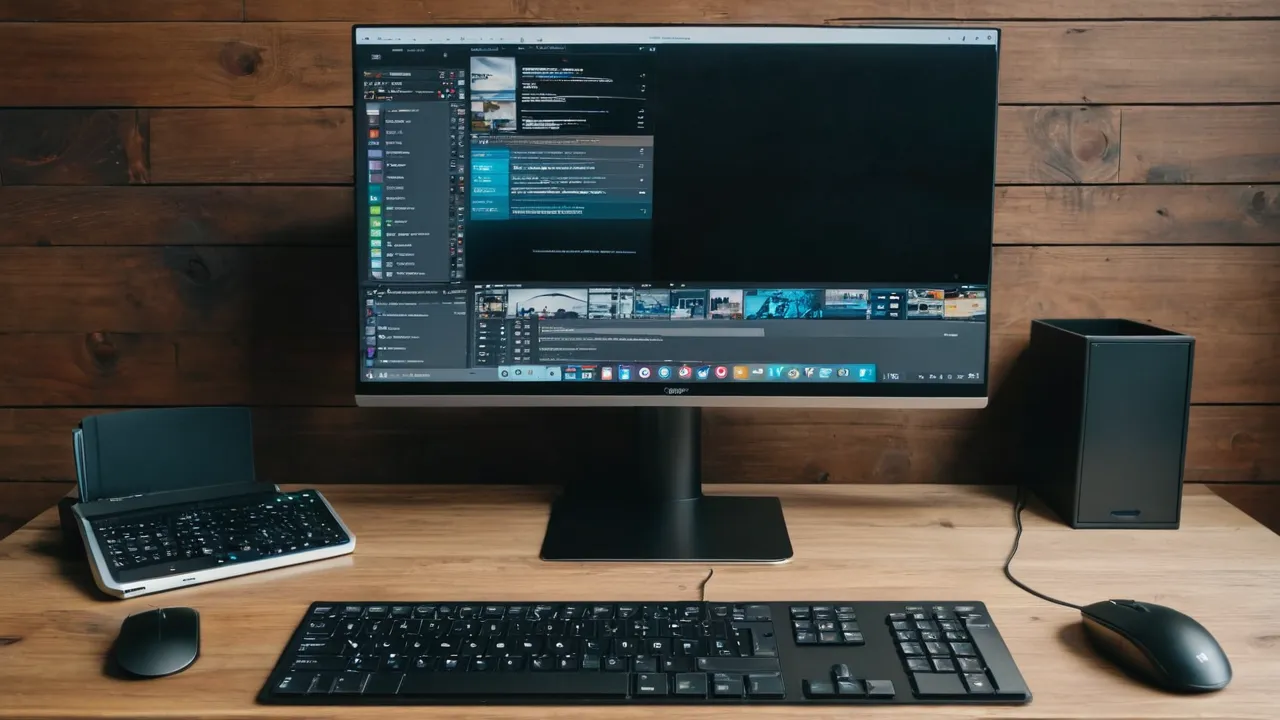
Not every USB-C port on a laptop can send video to a monitor. The port must support DisplayPort Alt Mode, Thunderbolt, or USB4, and the cable and monitor have to support the same signal. If the port carries only USB data and charging, a USB-C cable will fit but the screen will stay dark.
That fit-but-no-picture trap is the most common reason buyers return a monitor or a cable. The connector shape is shared by several very different ports, so the shape tells you almost nothing. This checklist walks through the evidence you can find in about ten minutes, in the order that settles the question fastest, and then covers the cable and power details that cause the second most common failure.
Start With the Port Markings
Look at the port itself first. A small DisplayPort logo (the letter D inside a rounded frame) beside the USB-C opening means video output is supported. A lightning bolt symbol means Thunderbolt, which always carries video. A USB symbol with a number or the letters SS only tells you about data speed, and by itself it does not promise video.
Many laptops print nothing at all beside their ports, especially thin models. Absence of a logo is not proof of absence of video. It simply means you need to move on to the next step and read the documentation.
Also note which port you are using. Laptops often mix port types on the same body: one side may have a full-featured port that handles video, charging, and data, while the other side has a charge-and-data port with no video. Two identical openings can behave differently, so write down which physical port worked rather than assuming all of them do.
Read the Specification Sheet Correctly
The manufacturer’s specification page for your exact laptop model is the authoritative source. Search the ports section for these phrases:
- DisplayPort Alt Mode, DP Alt Mode, or “DisplayPort over USB-C” means the port can output video.
- Thunderbolt 3, Thunderbolt 4, or USB4 generally means video output, though you should still confirm the number of displays supported.
- “USB 3.2 Gen 1 Type-C” or “USB-C (data only)” with no mention of display output usually means no video.
- “Power Delivery” alone refers to charging and says nothing about video.
The wording trap is “supports charging and data transfer.” A manufacturer listing only those two functions is quietly telling you the port has no display path. If the specification sheet is vague, the user manual’s port diagram often marks which port has the display function. When neither document is clear, the support chat or phone line of the laptop maker can confirm by model number, and that answer is worth more than any forum guess.
A Ten Minute Decision Path
Use this order so you stop as soon as you have an answer. First, look for a DisplayPort or Thunderbolt symbol on the port. If you see one, note it and move to the cable. If not, open the spec page for your exact model number and search for the phrases above. If the spec page is silent, check the user manual port diagram. If all three are silent, ask the maker’s support with your model number and keep the monitor return window open. Most laptops answer the question by the second step.
Keep a written note of the answer, such as which port carries video and how many displays it supports, so you do not have to repeat the search when you buy a dock or a second screen.
Know the Three Signal Families
Understanding the families helps you buy the right cable and avoid mismatches.
DisplayPort Alt Mode
This is the basic video path. The USB-C port reassigns some of its wires to carry a DisplayPort signal. It is widely supported on business laptops, many tablets, and some phones. The limit is that the maximum resolution and refresh rate depend on the DisplayPort version the laptop implements, which the spec sheet may or may not list. Check the stated maximum external resolution instead of assuming it matches the monitor’s native resolution.
Thunderbolt and USB4
Thunderbolt ports carry DisplayPort video plus fast data and power. USB4 ports are built on the same underlying technology, though video output and the number of external displays can vary by implementation. If you plan to run two screens from one port, this is the family to look for, and you should read the display count in the specification instead of assuming it.
HDMI Alt Mode
A smaller number of devices output HDMI through USB-C. It exists, but it is rare on laptops, so treat DisplayPort Alt Mode as the likely path unless the documentation says otherwise.
Check the Monitor Side and the Cable
Video support on the laptop is half of the chain. The monitor needs a USB-C input that accepts video, which many monitors label as “USB-C with DisplayPort Alt Mode.” Some monitors have a USB-C port that is only a data hub for peripherals, so look at the monitor’s input list.
If the monitor has only HDMI or DisplayPort inputs, you can still connect a laptop with a USB-C video port by using a USB-C to DisplayPort cable or a USB-C to HDMI adapter. This works when the laptop port supports video, and it is a reasonable choice when the monitor lacks USB-C. For help choosing between the cable types, read our comparison of monitor connection standards and the guide to how we review features and trade-offs.
Cable quality matters more than most buyers expect. A charging-only USB-C cable has no video wires. A cable rated for USB data may still not carry video at the resolution you want. For video, pick a cable explicitly sold for video or Thunderbolt use, and keep it short, because very long passive cables are more likely to drop out at high resolution and refresh rate.
Matching Wattage With Made-Up Numbers
Suppose your laptop ships with a 65 watt charger and a monitor lists 65 watts of power delivery. Under light work the laptop will likely hold its charge. Now suppose a larger laptop ships with a 140 watt charger and the monitor lists 65 watts. Under heavy load the battery may drain while plugged in, so keep the original charger available. The USB-C standard allows power delivery well above these figures, but each device sets its own limit, and the lower of the two numbers wins. Read both product pages and plan around the smaller figure.
Power Delivery and Safety Notes
When a single cable carries video and charging, the monitor supplies power to the laptop. The wattage the monitor can supply must meet the laptop’s needs. A monitor offering modest power delivery will keep a thin ultrabook charged but may fall behind a larger laptop under load, so the battery slowly drains while plugged in.
Compare two numbers: the wattage of the charger that shipped with your laptop and the power delivery wattage stated on the monitor’s product page. If the monitor’s figure is clearly lower, keep the original charger plugged in as well, or expect slower charging. Do not rely on a monitor to power a laptop whose charger is far higher in wattage.
Follow the manual for your laptop and monitor when connecting power and video cables. Use cables and chargers from the manufacturer or from reputable sellers that state their wattage and standard compliance. A damaged or very cheap cable that is not built to the USB-C specification can overheat or deliver unstable power, so retire any cable with bent connectors or frayed jackets. If a port gets unusually hot, disconnect it and have the device looked at by the manufacturer’s support rather than continuing to use it.
Troubleshoot When the Screen Stays Dark
Work through these steps in order:
- Try the other USB-C ports on the laptop, since only one may carry video.
- Swap in a different cable known to support video.
- Set the monitor input manually to the USB-C source instead of auto-detect.
- Unplug both ends, power both devices fully off, and reconnect.
- Update the laptop’s graphics driver and firmware from the manufacturer.
- Lower the monitor’s refresh rate setting if the picture flickers or drops out.
If none of this works, connect the monitor through a different method such as HDMI or a docking station to learn whether the monitor or the laptop port is the problem.
Who Should Choose What
If your laptop is clearly marked with DisplayPort or Thunderbolt and you want one-cable desks, buy a monitor with USB-C video and enough power delivery and use a certified video cable. If your port is data only, skip direct USB-C monitors and use an HDMI connection or a docking station that has its own video route. If you are not sure and the manufacturer cannot confirm, do not buy an expensive USB-C monitor on the hope that it will work; keep a return window open and confirm with the cable before you commit. For ideas on matching a screen to a laptop-based desk, see the best productivity monitor guide.
Frequently Asked Questions
How do I know if my laptop USB-C port supports video output?
Look for a DisplayPort or Thunderbolt symbol beside the port, then confirm in the spec sheet for your exact model. Phrases such as DisplayPort Alt Mode, Thunderbolt, or USB4 indicate video. A port listed only for data and charging usually has no display output. Support can confirm by model number.
Why does my USB-C monitor show no signal?
The most common causes are a port without video support, a charge-only cable, or the wrong monitor input. Try another laptop port, swap in a cable sold for video, and set the monitor input manually. Update graphics drivers and firmware, then try an HDMI or dock connection to isolate the fault.
Can any USB-C cable connect my laptop to a monitor?
No. Charge-only cables have no video wires, and some data cables are not built for video at high resolutions. Use a cable explicitly sold for video or Thunderbolt use, and keep it short. Match the cable to the signal your laptop port and monitor both support.
Will a USB-C monitor charge my laptop?
Only if the monitor offers power delivery and the wattage is sufficient. Compare the monitor power delivery figure with your laptop charger. If the monitor figure is clearly lower, charging will be slow or the battery may drain under load, so keep the original charger handy.
Final Thoughts
The shape of the connector will not answer the question; the spec sheet will. Confirm DisplayPort Alt Mode, Thunderbolt, or USB4 for the exact port, match the monitor input and the cable to that signal, and compare charger wattage with the monitor’s power delivery. With those four checks done, the one-cable setup works the first time far more often than not.
Related buying guides
- Mac Monitor Guide: Scaling, 4K and 5K Explained
- Matte vs Glossy Monitor Screens for Home Offices
- Monitor Arm Buying Guide: VESA, Weight, Reach
About the author

The BuyOnceChoice Editorial Team researches durable products worth buying once. Our guides compare published specifications, warranty terms, expert review consensus, and verified owner feedback. We do not conduct our own product trials. See How We Review and our Editorial Policy for our standards.