Monitor Flicker and Eye Strain: What to Check
Eye strain at a desk usually comes from setup and habits more than a single spec. Use this checklist to judge flicker claims and fix the basics first.
 By BuyOnceChoice Editorial Team
Updated November 16, 2026
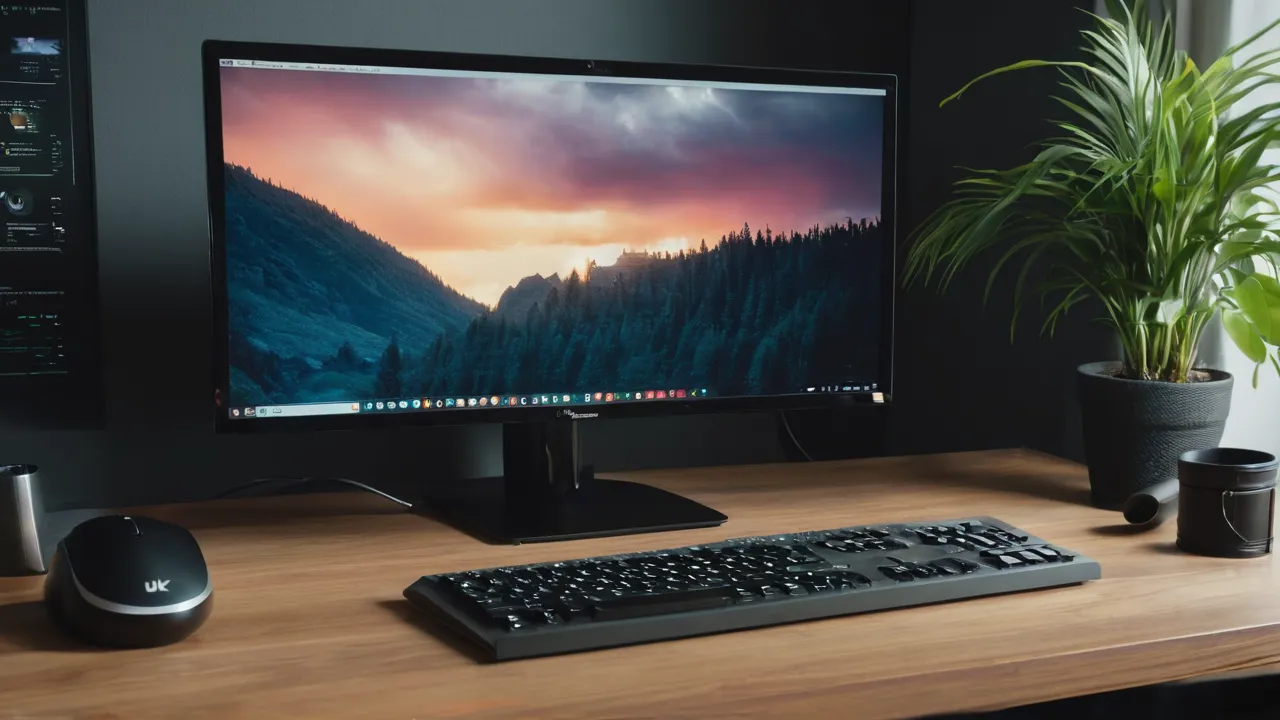
A flicker free monitor can help if you are sensitive to dimming flicker, but most desk eye strain traces back to brightness that does not match the room, a screen that is too close, too little blinking and too few breaks. Fix those first, then use flicker and glare features as tiebreakers rather than cures.
Eye Strain Rarely Has One Cause
People often buy a new monitor hoping to end tired eyes and headaches. Sometimes that works, but often the real issue is a mix of factors that a new screen only partly changes. Long periods of close focus, reduced blinking, glare, poor posture and uncorrected vision can all produce the same dry, heavy feeling by late afternoon.
A useful way to think about it is as a short chain. Light reaches the screen, the screen sends light to your eyes, and your eyes focus for hours at one distance. Any link can be improved. A monitor can change two of them, brightness behavior and reflections, while the others are habits and room setup.
This guide gives general comfort advice only. If you have persistent headaches, double vision or changes in your sight, see an eye doctor rather than trying to solve it with equipment.
What Flicker Actually Is
Many monitors dim their backlight by switching it on and off very quickly, a method called pulse width modulation. At full brightness the switching often stops or becomes negligible, but at lower settings the on and off periods can become visible to sensitive people, even when they cannot consciously see flicker.
Some makers advertise flicker-free or DC dimming, which means brightness is reduced by lowering the current rather than switching. That sounds ideal, and for people who feel discomfort at low brightness it can matter. But the claim is a marketing label rather than a standard measurement, so read the maker’s specification page and look for a clear statement about the backlight, not just a logo.
If you want to check your current screen, you can point a phone camera at it in a dim room and look for dark bands on the preview. This is a rough indicator, not a measurement, and many phone cameras hide it. Treat any observation as a clue, not proof.
What to Look For on a Product Page
Search the specification and support pages for the words flicker free, DC dimming, or no pulse width modulation. Check whether the maker states this for all brightness levels or only at a certain setting. Look for a matte finish, a stand with height adjustment, and a stated brightness range that includes comfortable low levels for evening work. If the page is silent on flicker, ask support or read owner comments on dimming. A clear statement is worth more than a logo, and silence is a reason to ask before you buy.
Brightness and Room Light Matter More
One of the most common mistakes is running a bright screen in a dim room, or the reverse. A bright white screen in a dark room is like staring at a lamp. A dim screen in a bright room makes your eyes work to read it.
A practical check is to look at a white document and then at a nearby object like a sheet of paper. The screen should look about as bright as the paper, not glowing and not dull. Adjust brightness until they feel similar. Many monitors have an ambient light sensor or a preset for reading that helps.
Do not rely on very low brightness settings to feel gentler. If your monitor flickers when dimmed, a better solution may be to lower brightness at the room level, by turning on a soft lamp behind the screen, and to keep the panel at a middle setting.
Blue Light Claims Are Oversold
Low blue light modes and filter glasses are heavily advertised. The honest summary is that evidence for eye damage from ordinary screen use is weak, and evidence that blue filtering clearly reduces desk eye strain is mixed. What these modes do reliably is shift the color warmer, which many people find comfortable in the evening.
That is a fair reason to use them, but not a reason to pay extra for a monitor. Every major operating system includes a warm color setting, usually with a schedule. If it makes the screen easier to look at at night, use it. If it makes colors look wrong for design work, turn it off.
If you struggle to sleep after late screen use, reduce brightness and finish work earlier where you can. That addresses the habit rather than the label.
Setup Habits That Do More Than Specs
Several free adjustments often outweigh a hardware change.
- Sit about an arm’s length from the screen and place the top edge at or slightly below eye level so you look slightly down.
- Use a larger text size so you do not lean in. Scaling in the operating system is better than squinting.
- Follow a regular break pattern. A common suggestion is to look at something far away for a short time every twenty minutes or so.
- Blink on purpose when you notice dryness, and keep room humidity reasonable.
- Reduce glare by turning the desk so windows are beside you rather than behind or in front of the screen.
These habits cost nothing, and they work with any monitor. If you try them for a couple of weeks and still feel strain, then hardware is worth considering.
A Two Week Habit Trial
Before you spend money, change one thing at a time for a couple of weeks. In the first week, set brightness to match the room, move the screen to arm’s length, and add short breaks. In the second week, remove glare with placement and increase text size. Keep a short note each evening on how your eyes felt. If the notes improve, the setup was the problem. If they do not, book an eye exam, because a prescription for screen distance may help more than any monitor feature.
Glare, Finish and Text Size
The front surface of the monitor affects comfort in bright rooms. A matte finish diffuses reflections, which helps near windows and under lamps. A glossy screen looks vivid but mirrors the room, and you may end up focusing on reflections without noticing.
Resolution and text clarity also play a role. If characters look fuzzy, your eyes keep trying to bring them into focus. A sharper panel at the right size and distance, along with the correct scaling, can reduce that effort. Our monitors category and the notes on how we review explain which specifications we weigh.
Keep an eye on warning signs. Occasional tired eyes after a long day are common, but frequent headaches, blurred vision that does not clear after rest, light sensitivity or double vision deserve a professional exam. An eye doctor can check your prescription, which is often adjusted for screen distance, and can advise on computer glasses. Follow the monitor manual for stand and cable use, and do not treat equipment as a substitute for medical advice.
Age and prescription matter too. People who start needing reading glasses often notice more strain at a desk before they realize why. Updating a prescription for a mid-range viewing distance can help more than any monitor feature.
A Decision Rule for Buyers
Here is a simple way to decide whether a monitor purchase is the answer.
- Buy a new monitor if your current one is clearly dim, uneven, glossy in a bright room, too small for comfortable text, or you notice discomfort mainly at low brightness settings.
- Fix the setup first if the screen is fine but you sit close, work for hours without a break, or have strong light behind or in front of it.
- Skip paying extra for blue light branding alone. Prefer a matte finish, flicker-free dimming stated by the maker, height adjustment and enough resolution.
- See an eye doctor if symptoms persist after adjusting setup, since prescription changes are a common cause.
Frequently Asked Questions
Does a flicker free monitor reduce eye strain?
It can help if you are sensitive to dimming flicker, especially at low brightness, but it is not a cure. Most desk eye strain comes from brightness that does not match the room, close viewing, glare, and too few breaks. Treat flicker free dimming as a tiebreaker.
How do I know if my monitor flickers?
Look for a maker statement about flicker free or DC dimming on the specification page. A phone camera pointed at the screen in a dim room may show dark bands, but many phones hide them, so it is only a rough clue. Sensitive users should check dimming behavior at low brightness.
Do blue light filters help with eye strain?
Evidence that they clearly reduce desk eye strain is mixed. They do shift colors warmer, which many people find comfortable in the evening. Use the built-in warm color setting if you like it, and do not pay extra for a monitor based on blue light branding alone.
What is the 20 20 20 rule for screen use?
It is a common suggestion to look at something about 20 feet away for about 20 seconds every 20 minutes. It gives your focusing muscles a break and reminds you to blink. It is a habit, not a medical rule, so see an eye doctor if symptoms persist.
Final Thoughts
Eye comfort at a desk is a setup problem first and a hardware problem second. Match brightness to the room, sit at a comfortable distance, take breaks and cut glare. When you do buy, favor a matte finish, an adjustable stand and a maker statement about flicker-free dimming, and treat blue light branding as a minor bonus.
If you are ready to compare screens, start with the productivity monitor roundup and keep the checklist above handy. Persistent symptoms deserve a professional eye exam.
Related buying guides
- Monitor Size by Desk Depth: 24, 27, 32 Inch
- Monitor Warranty and Dead Pixel Policies Explained
- OLED Monitor Burn In: Who Should Skip OLED
About the author

The BuyOnceChoice Editorial Team researches durable products worth buying once. Our guides compare published specifications, warranty terms, expert review consensus, and verified owner feedback. We do not conduct our own product trials. See How We Review and our Editorial Policy for our standards.